Time Clock
What's On the Page?
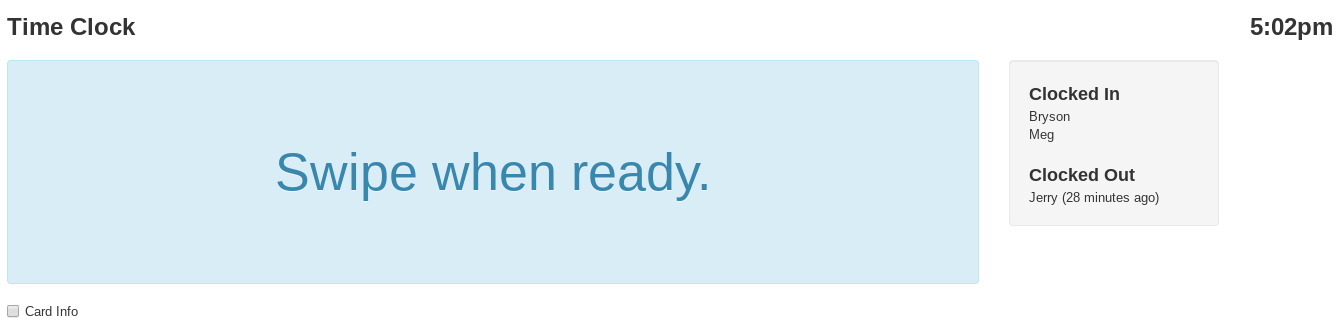
Depending on the configuration for your company, employees can clock in or out using either their employee ID (in this case the Time Clock would show "Click when ready.") or a physical card and a card reader.
VMX also has optional features to code employee time to a division and prompt for and record breaks at the end of shifts.
See your own hours when you clock out
When an employee clocks out, the confirmation banner shows their running totals, for example:
7.25 hours today. 38.5 hours in pay period.
So staff can check their own hours any time just by looking at the banner at clock-out — no report access needed.
Two parts of this are set per store:
- The window — the second line shows either the pay period or the current week. Stores that manage overtime weekly usually want the week, since overtime is counted per week (over 40 hours) rather than per pay period; on a two-week pay period the pay-period figure can read close to 80 hours and says nothing about where someone stands against the overtime line.
- When it appears — some stores show the totals at clock-in as well as clock-out, so staff can see where they stand before the shift starts rather than only after it ends.
Ask VMX support if you'd like either of these changed for your store.
The banner is a quick reference, not the paystub: payroll applies things the banner doesn't — like splitting overtime past 40 hours and any punch-rounding rules your store uses — so the official numbers are the ones on the payroll report in Admin.
"Clock in/out not allowed here."
Warning
Getting a "Clock in/out not allowed here." message (or "Clock in/out not enabled here" on the ready screen)?\ That means this device's access method does not allow clocking in or out. An administrator can fix it under More → Admin → Access: add (or pick) the access rule for this device and set its Clock In field to Yes — or contact help@vmxllc.com.
To see every rule that is (or isn't) allowed to clock in, and which one this device is using, open Admin → Access → Clock-in activity. See Clock-in activity.
Stop staff clocking in and out from home
Staff who have a VMX sign-in link on a laptop or phone can use it anywhere, and that includes clocking in and out. To restrict clocking in to your stores, open Admin → Access → Clock-in activity: it shows where people have actually been clocking in from and lets you turn clocking in off for any sign-in link that is being used away from your locations.
Clocking in is controlled by the access rule the device is using, not by the employee's own permissions — which is why there is no setting for it on Admin → Permissions. Full walkthrough: Clock-in activity.
To learn about managing employees time, check out the Admin documentation: