Accounting Report
What's on the Page?
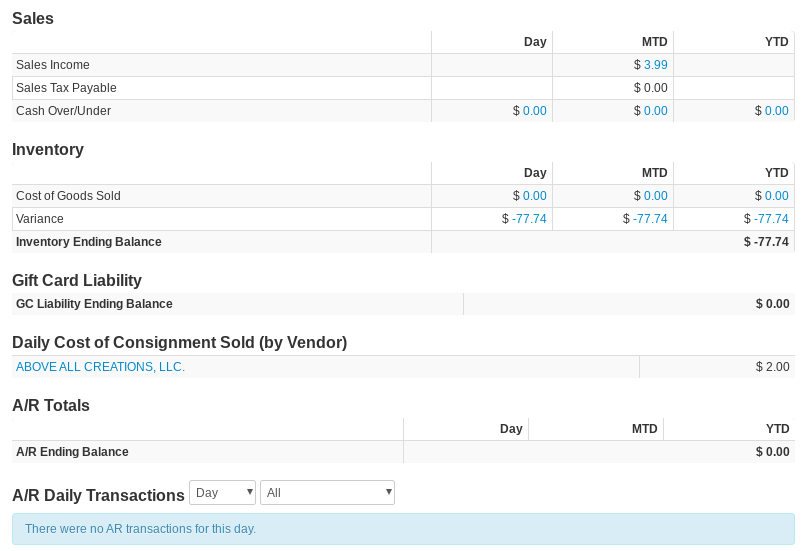
The Accounting Report (found under Reports → Accounts → Accounting) summarizes everything your bookkeeper needs for the selected report date, with Day, MTD (month-to-date), and YTD (year-to-date) columns. Most figures are hyperlinked to the detailed report they come from. A Jump to Journal Entry link at the top takes you to the day's journal entry at the bottom of the page.
If your QuickBooks Online integration is connected and you're viewing the last day of a month, VMX also pulls your QuickBooks balances and marks each reconcilable figure with a check mark when the two systems agree, or a warning symbol when they don't — hover over the warning to see the QuickBooks account total.
Sales
Day, MTD, and YTD totals for:
- Sales Income — Total sales, hyperlinked to the department sales report for the same period.
- Sales Tax Payable — The sales tax owed.
- Cash Over/Under — The total of drawer over/under amounts from drawer counts, hyperlinked to the drawer over/under detail.
Inventory
Day, MTD, and YTD totals for:
- Cost of Goods Sold — The cost of the goods sold (not including sales of consignment items).
- Variance — The cost of manual inventory adjustments (not including adjustments of consignment items), hyperlinked to the adjustments report.
- Inventory Ending Balance — The amount your accounting inventory asset account should show on this date. Use this figure (not the Dept Inventory Report) for accounting reconciliation, since it automatically adjusts for timing differences between when VMX receives inventory versus when your books record it based on invoice dates.
Inventory by Department
A per-department breakdown of the Inventory Ending Balance, with a total row. Like the overall Ending Balance, this is what your accounting inventory asset account should show on this date for each department.
Gift Card Liability
GC Liability Ending Balance — The total value of outstanding gift cards as of the report date. For multi-store companies this balance is company-wide.
Store Credit Liability
Store Credit Liability Ending Balance — The total value of outstanding store credits as of the report date. For multi-store companies this balance is company-wide.
Daily Cost of Consignment Sold (by Vendor)
Shown when consignment items were sold on the report date: the cost of the consignment goods sold that day, listed by vendor — the amount owed to each consignment vendor for that day's sales.
A/R Totals
Day, MTD, and YTD accounts-receivable activity. Rows appear only when they have activity, and each amount links to the matching A/R Daily Transactions list:
- Payments in Office — Payments on accounts not rung up at a register.
- Payment Refunds — Refunds of in-office payments.
- Payments at Register — Payments on accounts taken at a register.
- House Charges — Total of all charges to customer accounts.
- Payments Declined — Payments that were later declined (e.g., returned checks).
- Fees Assessed — Bank fees charged back to customer accounts.
- Other — Other account adjustments, such as finance charges and manual credits/debits.
- A/R Ending Balance — What your accounts-receivable account should total as of the report date (company-wide for multi-store companies), hyperlinked to the A/R Balances As Of report.
Customer Deposit Totals
The same breakdown for customer-deposit activity: Deposits in Office, Deposit Refunds, Deposits at Register, Deposits Applied, Deposit Payment Declined, Fees Assessed, Other, and the Customer Deposit Ending Balance (company-wide for multi-store companies).
A/R Daily Transactions
An itemized list of accounts-receivable transactions. Use the controls in the heading to pick the period (Day, WTD, MTD, QTD, YTD) and filter by category (All, Payments in Office, Refunds in Office, Payments at Register, House Charges, Payments Declined, Fees Assessed, Other), and check Filter Deposits to limit the list to deposit transactions. The table shows the Date, Cust. #, Name, Invoice #, Receipt #, Amount, a Description of the transaction type, and any Note. A download icon exports the list to CSV. If there was no activity, the report shows "There were no AR transactions for this day."
Journal Entry
At the bottom of the page, VMX builds the day's journal entry — each line with its Account, Debit, Credit, Description, Customer, and Class. When your accounting integration is connected, a download icon exports the entry to CSV and an Add JE for Day button pushes the journal entry into your accounting system.