Worksheet
Worksheets are an easy way to see all the items that need to be inventoried in a department.
Choose one or more departments (or sub-departments) from the drop-down at the top of the page to load the worksheet. If your system uses collections, a second drop-down lets you filter to specific collections as well.
Items shown in gray don't currently need a count — typically because they were counted recently, were added to the system very recently, or aren't inventoried items.
Use the checkboxes to narrow down the worksheet:
- Don't print recently counted items
- Don't print items with 0 on hand
- Only show negative items
- Include archived items — archived items are hidden unless this is checked
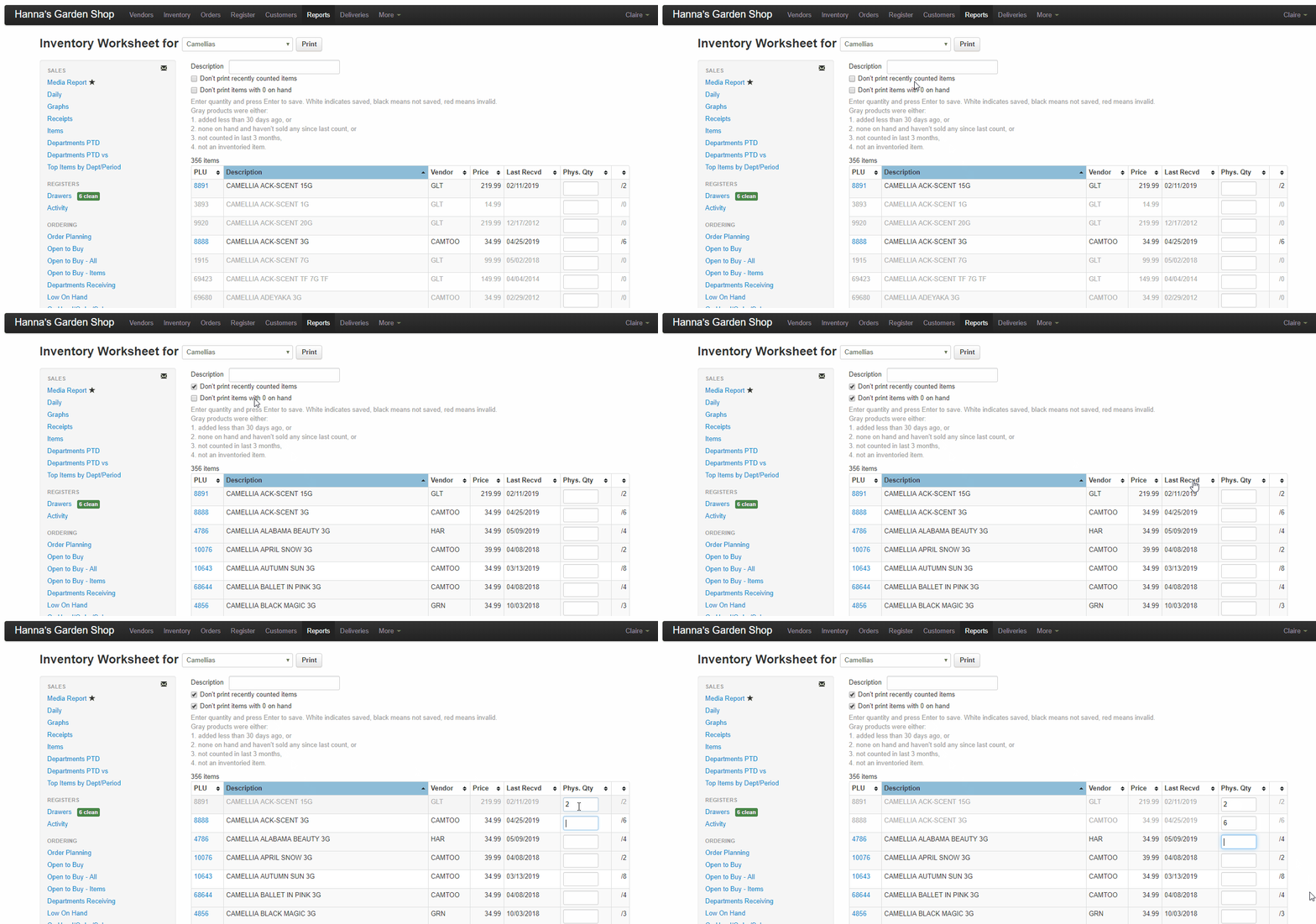
Entering Counts on the Worksheet
You can either click Print to print the worksheet, write in your counts, and then enter them on this page — or simply use a laptop, tablet, or smartphone to enter the counts as you go!
- Type the counted quantity in the Phys. Qty box for the item.
- Press Enter (or Tab) to save. As the page explains: white indicates saved, black means not saved, red means invalid.
- After saving, the cursor jumps to the next item's box automatically.
Inventory Import
Use a spreadsheet to update your inventory quantities with the Upload button on the Worksheet page!

- Download the worksheet as a spreadsheet (use the Download CSV icon on the page), or build your own with a PLU column for your item numbers and a Phys. Qty column for the corresponding counts.
- Click Upload and choose your CSV or XLSX file.
- Confirm the store shown in the Upload Inventory Counts prompt, then click Set Counts.
- A results summary shows how many rows were updated and lists any rows that were skipped (for example, an unknown PLU or an empty quantity).
You can also include optional date columns in your spreadsheet:
- Date (or Adjustment Date) — sets when the adjustment is recorded (for example, "1/15/2025" to backdate it)
- Count Date — the date you physically counted. VMX calculates the adjustment based on what the on-hand was at the end of that date, accounting for sales and receipts since then
Warning
If you use Count Date with an Adjustment Date on or after the count, do not upload the same worksheet more than once — re-importing will apply duplicate adjustments and cause incorrect quantities.