Deliveries
What's on the Page?
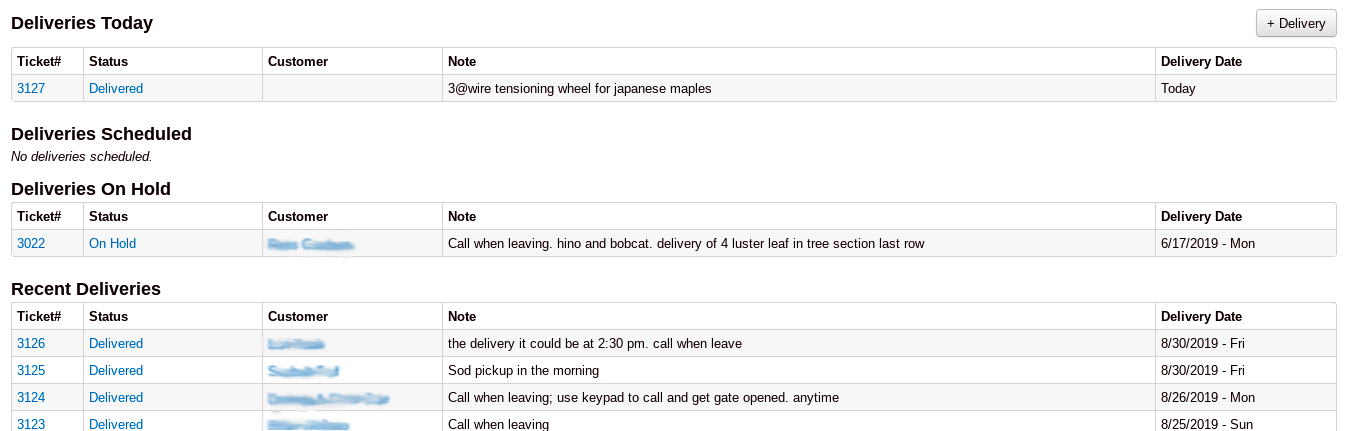
The Deliveries page lists every delivery ticket, grouped into sections: Deliveries Today, Deliveries Scheduled, Deliveries On Hold, and Recent Deliveries.
"+ Delivery"- Select this button to add a new delivery.
Tip
For more information on adding deliveries to the POS visit the "Adding New Deliveries" page.
"With Checked"- Check the box next to one or more deliveries, then use the With Checked drop-down to change their status all at once (for example, mark several tickets Loaded or Out for Delivery). Choosing Scheduled asks for a date first -- see Schedule several tickets at once.
"+ Route"- Group checked deliveries into driver routes. Delivery routing is enabled per-client by VMX -- see Delivery Routes & Driver Printouts.
Filters- Companies with more than one store see an All stores checkbox to show deliveries from every store instead of just the current one. Companies with multiple divisions can filter the page by division with the All Divisions drop-down.
Deliveries Today
Deliveries Today shows a summary of the day's deliveries (plus any earlier deliveries that are still in progress). Columns include:
- Ticket #- The unique number assigned to the delivery, which is hyperlinked to the specific delivery ticket.
- Status- The delivery's current status, hyperlinked to the delivery ticket. The status options are: On Hold, Scheduled, Ready, Loading, Loaded, Out for Delivery, Delivered (shown as Picked Up for pickups), and Canceled. Some stores also have a Pulled status (see below). Change the status on the delivery ticket itself, or use the With Checked menu to update several tickets at once. If the ticket is on a delivery route, the route number is shown here too.
- Customer- The customer's name (linked to their account) and phone number
- Note- Pertinent notes and reminders such as time preference and product locations, plus the delivery address
- Zip- The delivery address zip code
- Driver- The assigned driver, or "Unassigned"
- Truck- The assigned truck, or "Unassigned"
- Delivery Date- The scheduled delivery date (shown as "Today" or "Tomorrow" when applicable) along with a delivery time or AM/PM preference if one was set. On-hold deliveries show the date the sale was rung instead.
Info
The Deliveries Today, Deliveries Scheduled, and Deliveries On Hold sections each have a download icon to export that table to a CSV file, and the column headers can be used to sort and filter the tables.
Items and item notes on the Deliveries page
Some stores (enabled per-client by VMX) see each ticket's items listed in the Note column of the Deliveries and Pickups pages, one line per item as quantity x description. The delivery or pickup fee item itself is left off the list.
- Tickets that have been paid list the items from the receipt. Tickets created from a held sale that hasn't been rung up yet list the items from the held sale.
- Where item notes are turned on, the note typed on an item at the register shows after that item, in italics (for example, 2 x Knockout Rose – customer wants the pink ones).
Contact help@vmxllc.com if you'd like items or item notes shown on your Deliveries page.
Pulled status
Some stores (enabled per-client by VMX) have a Pulled status between On Hold and Scheduled. Use it for tickets whose merchandise has been moved to the holding area but that are still waiting on something else, such as utility locates, before they can go out.
- When the merchandise is in the holding area, set the ticket's status to Pulled, on the ticket or with the With Checked menu.
- The ticket stays in the On Hold section, and it is not counted in the number next to Deliveries in the top menu.
- When the ticket is clear to go, set it to Ready. Setting a delivery date on a Pulled ticket does not change its status.
Use the Location note (below) to record where the pulled merchandise is waiting.
Location note on the Deliveries page
Some stores (enabled per-client by VMX) have a Location column on the Deliveries and Pickups pages. Use it to record where a pulled order is waiting, such as Hut 4, right from the list without opening each ticket.
To set the Location note on one ticket:
- Click in the Location box on that ticket's row.
- Type the note.
- Press Enter or click anywhere else on the page. The box flashes green when the note is saved. Press Esc instead to cancel your edit.
To set the same Location note on several tickets at once (for example, three orders all pulled to Hut 4):
- Check the box next to each ticket in the Today, Scheduled, or On Hold sections.
- Open the With Checked drop-down and choose Set Location....
- Type the note and click OK. Leave the box empty and click OK to clear the note on those tickets.
To clear a note, delete the text in the box and press Enter. The Location note is included when you download a section as CSV, and you can sort the tables by it.
If someone else changed the note after you opened the page, your change is not saved and you see "It looks like someone has changed the text since you opened the page. Please refresh the page to load their changes and try again." Refresh the page and enter the note again.
Schedule several tickets at once
Use this to give a group of tickets a delivery date and mark them Scheduled in one step, without opening each ticket.
- On the Deliveries (or Pickups) page, check the box next to each ticket.
- Open the With Checked drop-down and choose Scheduled.
- In the Schedule window, pick the Delivery Date (Pickup Date on the Pickups page). The date is required.
- Optionally pick a Time. The choices are the same as the Time drop-down on the ticket. Leave it on Keep each ticket's time to leave each ticket's time as it is.
- Click Schedule. Click Cancel to close the window without changing anything.
Every checked ticket gets the date (and time, if you chose one) and is marked Scheduled. The page reloads, and the tickets move to Deliveries Scheduled, or to Deliveries Today if the date is today. If the date is a blackout date for your store, you are asked to confirm before the tickets are scheduled.
A change made from the With Checked menu is saved the same way as a change on the ticket itself: the ticket's history records the old and new date, time, and status. One difference: changes made from this menu never send customers a notification, even at stores whose tickets email customers on a status change. Send those from the ticket itself. If a ticket cannot be changed (for example, a date limit your store has), the other tickets are still changed, and a message lists each ticket that was not changed and why.
The same date window opens when you choose Scheduled from Update All Status on a route page. See Delivery Routes & Driver Printouts.
Other Sections on the Deliveries Page
Deliveries Scheduled- view a table summary of future scheduled deliveries
Deliveries On Hold- view a table summary of deliveries that are waiting on a delivery date (for example, deliveries that need to be rescheduled by the customer)
Recent Deliveries- view a table summary of completed and canceled deliveries
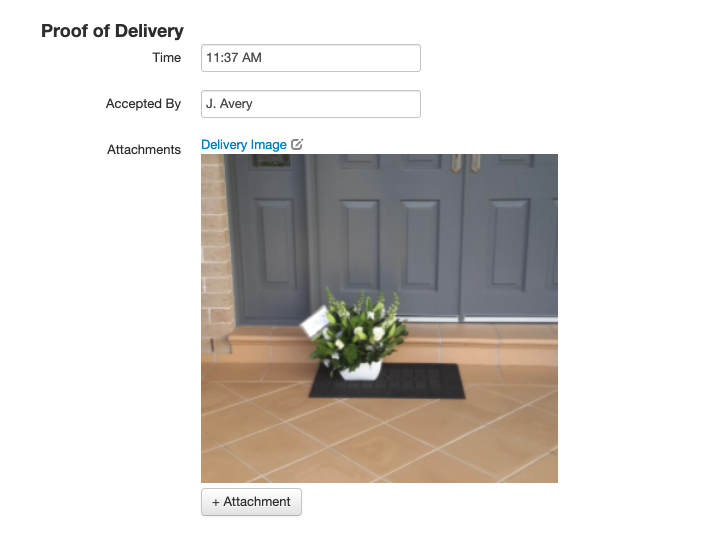
Proof of Delivery
Open a delivery ticket (click its Ticket # or status) to record proof of delivery. The Proof of Delivery section of the ticket lets you enter a Time, an Accepted By name, and a customer signature via Capture Signature. Use the + Attachment button in the same section to attach files such as a photo of the delivered items -- attachments (pdf, images, documents, etc.) are shown on the ticket.