Accounts Receivable
A/R- The tab allows you to see a customer's balance history, open credit and unpaid invoices.
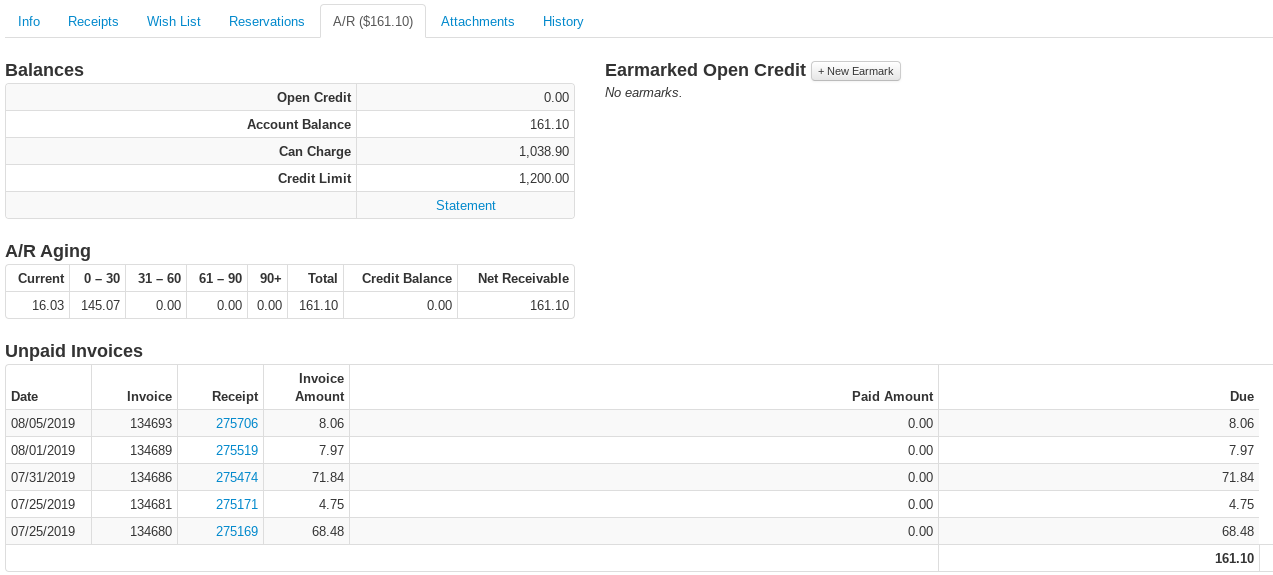
Balances
- Open Credit- This field shows the amount of of credit paid by the customer against their charges.
- Account Balance- This field shows the total amount charged by the customer.
- Can Charge- This amount is the Invoice Balance minus the Open credit and reflects the credit left on their account.
- Credit Limit- The total amount of the line of credit for the customer's account.
- Statement- Select the statement link to create an up-to-date, printable statement for the customer's account.
Earmarked Open Credit

Select the "+ New Earmark" button to add a specification to a credit amount on a customer's account. Add the amount, and a note when prompted by a dialogue modal and select the trash icon when you are ready to delete the earmark.
A/R Aging
This field separates the Account Balance into the periods they are due. They are separated into current balance, total balance, credit that has yet to be applied to the customer's balance and the remaining amount receivable.
Recording Payments — Use the Register
The Payment form on this tab (and the Pay option on each open invoice) records a payment directly against the account, bypassing the register. This is occasionally necessary — a check that arrives in the mail, a bank adjustment — but it should be the exception, not the norm. Payments entered here:
- are not included in your register tender totals or drawer counts
- are not automatically synced to your accounting system (on most setups)
- do not produce a customer receipt
Because of this, VMX asks "Are you sure?" before recording a payment on this tab. Whenever possible, ring the payment at the Register instead (as a Payment on Account), where it is tendered, counted, and receipted like any other transaction. Applying a customer's existing Open Credit to an invoice is fine to do here — that just moves credit already on the account and does not prompt the confirmation.
Unpaid Invoices
This table summarizes all the invoices that have yet to be paid. The fields in this table include:
- The date of the invoice
- The invoice number
- The receipt that the charge was created
- The amount on the invoice sent
- The amount left to be paid
- The final amount due
Account History

The Account History shows the total history of credits and charges to a customer's account. The fields in this table include:
- The date the transaction took place
- The Invoice number if applicable
- The receipt number (hyperlinked to the receipt)
- The amount charged or credited
- The balance left after the transaction noted
- The Event ID- unique number that identifies the transaction
- The type of transaction (typically the tender method)
- The total payment from that transaction (typically noted if the customer includes other purchases on their receipt in addition to a payment on their account)
- Any notes on the payment or the receipt
Linked rows — one payment, many lines
A single payment made at the register can be applied across many invoices at once — and each invoice application appears as its own row in Account History. These rows are all part of one transaction. To see which rows belong together, hover over any row: every row from the same transaction highlights. Multi-row transactions also show a colored bar on the left edge and a link badge (for example, a link icon with "5") on one of their rows telling you how many rows the transaction spans.
Register vs. Office entries
Each history row tells you where it came from:
- at Register in the Type column — the payment was rung at a register as part of a receipt. These are counted in tender totals and drawer counts.
- An Office label — the entry was made on this A/R tab (or by an administrative adjustment), not at a register. These rows also carry an amber bar on the left edge. Office entries are not part of any register's tender totals, which is why payments should normally be taken at the Register (see "Recording Payments" above).