Time
The Admin → Time page shows employee time-clock activity — every clock-in and clock-out (a "swipe") — and lets you correct missed punches. The Time tab appears in Admin when your VMX license includes the time clock; seeing it requires the 👁️ Swipes admin permission, and adding swipes requires ✏️ Swipes (both managed on Admin → Permissions under Admin Permissions).
Info
A "swipe" is a single clock-in or clock-out event — for example, an employee entering their employee ID at the register to clock in.
Choose a date or date range
To review swipes for a previous day, use the Date fields at the top of the Admin → Time page:
- Enter a start date (and optionally an end date to view a range).
- Click Go — or just pick a date from the calendar popup.
- Use the icons next to the Go button to jump around: the back arrow goes to the previous day, the forward arrow to the next day, and the gear icon between them returns to today.
If your company has more than one store, an All stores checkbox appears — check it to see swipes from every store instead of just the one you're logged into.
Missed Swipes
When an employee forgot to clock out on a previous day (within roughly the last four weeks), they're listed in a Missed Swipes table near the top of the Admin → Time page, with the date of the incomplete day. Click the employee's name to open their time detail page for that date and fix the missing punch.
Missing Pay Rates
If an employee has recorded time in the last month but has no pay rate set up, a red Missing Pay Rates alert appears at the top of the Admin → Time page listing each affected employee and the first affected date. Labor cost figures can't be calculated for those employees until a rate is set on their employee record.
Insert Swipe (add a missed clock-in or clock-out)
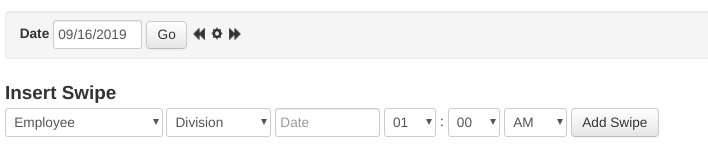
Use Insert Swipe on the Admin → Time page to manually enter a punch an employee missed (requires the ✏️ Swipes admin permission):
- Choose the employee.
- Choose the Division the employee was clocking in to — or choose [Clock out] to record a clock-out.
- Enter the date and time of the missed swipe.
- Optionally add a note explaining the correction.
- Click Add Swipe.
The date picker only allows recent dates (roughly the last two weeks). Manually added swipes are highlighted in green in the swipe log, along with who added them and when.
Clocked In Now & Clocked Out Today
When viewing today's date on the Admin → Time page, two lists appear: Clocked In Now (all employees currently clocked in) and Clocked Out Today (employees who worked today and have already clocked out).
Swipes log
The Swipes table on the Admin → Time page lists every swipe for the selected date or range: employee, swipe time, division, note, and — for manually added swipes — who added it and when (manual swipes are highlighted green). Additional columns show the IP address, location, and browser/session details of each swipe, plus which access rule was used. Each employee also gets a color stripe so their swipes are easy to spot.
- The Location column links to a map of where the swipe happened; if it was within about half a mile of one of your stores, the store's name and distance are shown instead of raw coordinates.
- With the All Stores box checked, a Store column shows which store each swipe belongs to.
- Click the View Map button next to the heading to see all of the day's clock-in/out locations plotted on one map.
- Click an employee's name to open their time detail page for that date.
Store Hours for Period
When your store hours are scheduled, the Admin → Time page shows a Store Hours for Period table for the selected date range: Total Scheduled Hours, Days Open, and Average Hours per Open Day.
Labor Cost Today
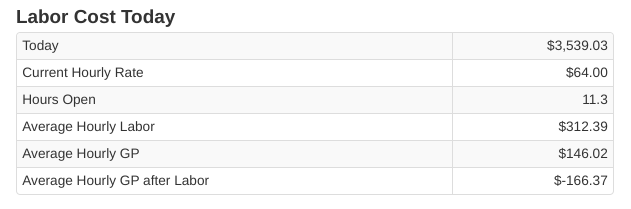
When viewing today's date, users with the 👁️ Labor Cost admin permission see a Labor Cost Today table on the Admin → Time page with at-a-glance figures for the day:
- Today — total labor cost so far today.
- Current Hourly Rate — combined hourly pay rate of everyone clocked in right now.
- Hours Open — hours between the first clock-in and the last clock-out (or now).
- Average Hourly Labor — labor cost per hour open.
- Average Hourly GP — gross profit per hour open.
- Average Hourly GP after Labor — gross profit per hour open, minus labor cost.