Adjustments
- Specify which period you want to view at the top of this report
- You can also view the report in terms of item quantity or item cost by selecting the dropdown at the top of the page.
Info
By clicking any of the department names, you can view a breakdown of the adjustments by item.
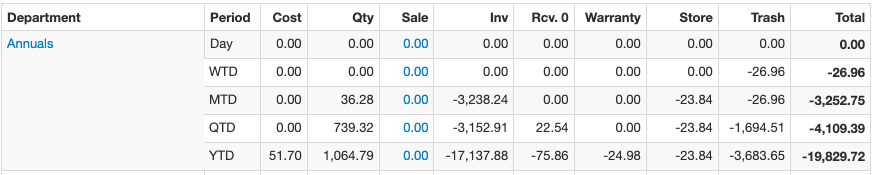
Different types of inventory adjustments included in this report include:
- Cost- This represents a change in the manual cost if an employee changes the cost on the item page
- Qty- This represents a change in the quantity of an item if an employee changes the quantity manually on the item page
- Sales- This number represents the cost of goods sold on manual sales
- Inventory Counts- When processing an inventory count, any discrepancies will be recorded in the column
- Receive to Zero- When an item is oversold (sold into the negative) at a cost different than the received cost the difference is recorded here.
- Warranty- If an item is used as a warranty replacement and given to a customer for free, the cost is recorded here
- Store Use- If an item is used for store purposes, the cost is recorded here
- Trash- If an item is "trashed" from the Inventory or Register screen, it is recorded here
Adjustments by Item (Department Drill-Down)
Clicking a department name on the Adjustments report opens the Inventory Adjustments PTD page for that department — a breakdown of the department's adjustments item by item.
Controls at the top of the page:
- Period — choose All, Day, WTD, MTD, QTD, or YTD. With All selected, each item shows five rows (Day, WTD, MTD, QTD, YTD) so you can see how the adjustment accumulated. With a single period selected, each item is one row and the table becomes sortable and filterable, with a totals row at the bottom.
- All Divisions — shown when your business has more than one division; limits the results to adjustments recorded under one division.
- All stores — shown when you have more than one store. By default the page shows only the store you are signed into; check All stores to include every store.
- Costs / Quantities — view the numbers as adjustment cost dollars (default) or as adjusted quantities.
The table has one column per adjustment type (Cost, Qty, Sale, Inv, Rcv. 0, Warranty, Store, Trash, and any client-specific types), plus a Total column per item. Click a PLU to open the item page.
Info
This drill-down includes only variance adjustments (the kinds that affect your inventory variance in accounting), and consignment items are excluded — so its totals match the variance shown on the Accounting report. For a complete line-by-line log of adjustment activity including who made each change, use the Adjustments (Activity) report.