Schedule (Admin)
The admin Schedule page (More > Admin > Schedule) shows each day's shifts side by side with the numbers a manager needs to staff well: total scheduled hours and labor dollars for each day, last year's sales, projected sales, and alerts when coverage looks thin. The shifts themselves live in a Google Calendar that VMX reads — you build the week in Google Calendar, and VMX layers the reporting on top.
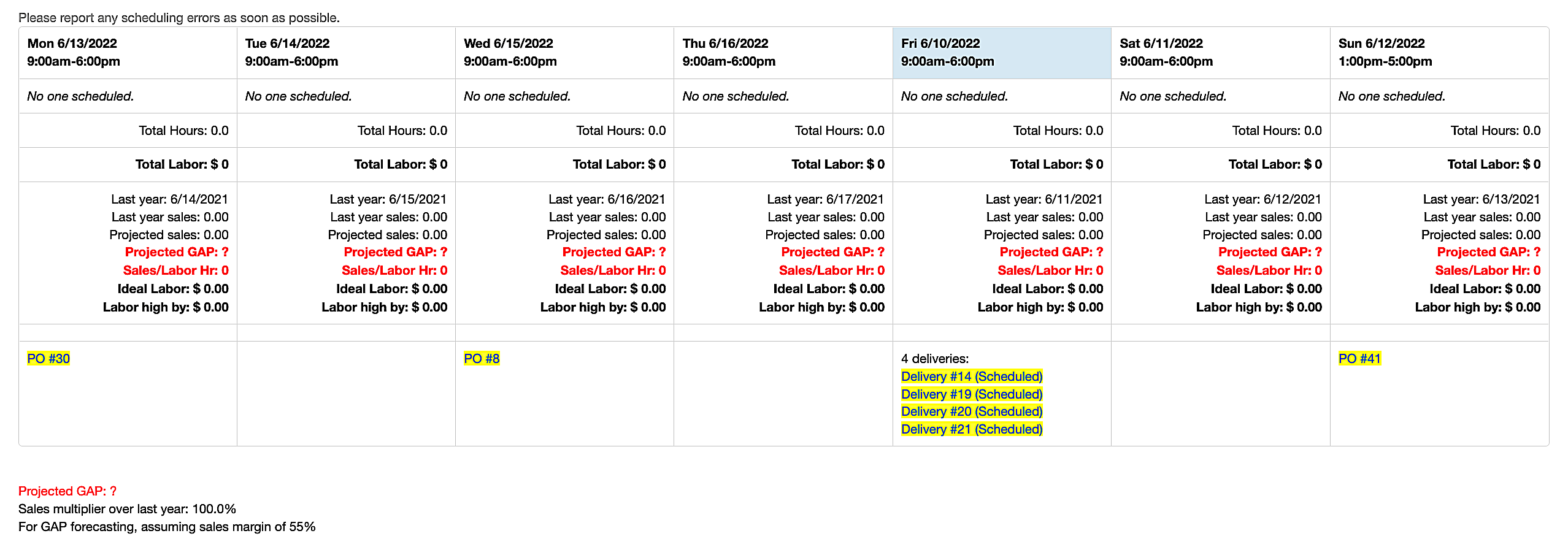
The admin Schedule page includes:
- Every shift for the week, grouped by day
- Total Hours and Total Labor dollars for each day
- Historical and projected data per day: last year's sales, projected sales, projected GAP, sales per labor hour, ideal labor dollars, and how far off your scheduled labor is
- Last year's daily report note for each day
- A Weekly Hours Per Person summary
- Alerts when too few employees are scheduled at any one time
- That day's deliveries, pickups, and incoming purchase orders
Availability
Scheduling is enabled per-client by VMX. When it's enabled, a Schedule tab appears under the More menu for all staff, and a Schedule tab appears in the Admin menu for users who have the 👁️ Schedule admin permission (set on the Permissions page). If you don't see the Schedule tab and would like to use it, contact help@vmxllc.com.
Set Up the Schedule Calendar (Google Calendar)
VMX reads the schedule from a Google Calendar you own. These same steps are available in-app: on the staff Schedule page (More > Schedule), click the Setup Instructions button.
- Create a Google Calendar dedicated to your schedule.
- In the calendar's Settings and sharing, share it with the VMX calendar service account with the permission "See all event details". The exact account address to share with is shown in the Setup Instructions window on your More > Schedule page.
- In the calendar's Integrate calendar section, copy the Calendar ID (it looks like
xxxx@group.calendar.google.com). - In VMX, go to More > Admin > Registers and scroll to the Stores section. Click the pencil next to your store, paste the Calendar ID into the Schedule URL field, and click Update.
If you have multiple locations, each store row has its own Schedule URL — create a separate calendar per store so each location gets its own schedule.
Build the Week: Add Shifts in Google Calendar
Each shift is one Google Calendar event:
- In Google Calendar, click Create and add an event on the day the employee works.
- Set the event title to the employee's name — it must exactly match the employee's Display name as shown on More > Admin > Users. That's how VMX ties the shift to the employee for labor-cost math and the time clock.
- Set the event's start and end times to the shift's start and end.
Tips:
- Anything in square brackets in the event title is shown on the schedule but ignored when matching the employee — so "Jane [register]" and "Jane [closing]" both count as Jane's shifts.
- An all-day event doesn't create a shift; instead its title appears as a highlighted note on that day of the schedule (useful for "Truck day" or "Sale starts").
- If a title doesn't match any employee's Display name, the admin Schedule page shows a Missing info for warning under that day's labor total and assumes a placeholder pay rate — fix the event title (or the employee's Display name) so labor dollars are accurate.
Changes made in Google Calendar appear in VMX the next time the Schedule page is loaded — there's no separate sync step.
Copy Shifts from Week to Week
Repeating schedules are handled with standard Google Calendar tools:
- Recurring shifts — when creating the event, click the Does not repeat dropdown and choose Weekly. When an employee's regular shift changes, edit one occurrence and choose "This and following events."
- One-off copies — in Google Calendar, open an event and use its Duplicate option to copy a shift to another day, or drag events to move them.
Because VMX reads the calendar live, a repeated or copied event shows up on every future week's schedule automatically.
Reading the Week: Shifts, Hours, and Labor Dollars
The admin Schedule page shows one column per day. Each day's header shows the date and the store's operating hours for that day (or "Closed"); operating hours come from the Store Hours page, reachable via the Manage Store Hours link at the top of the Schedule page.
Under each day:
- Each shift is listed with the employee's name and start–end times. Days with no events show "No one scheduled."
- Total Hours: — the total scheduled labor hours for that day.
- Total Labor: $ — scheduled hours × each employee's pay rate. Rates come from Employee Pay; if an event title doesn't match an employee with a pay rate, a Missing info for warning appears and a placeholder rate is assumed.
Sales Projections and Labor Targets (GAP)
Below each day's labor totals, the admin Schedule page compares the schedule you've built against sales history (hover any ⓘ marker on the page for the same explanations):
- Last year: — the matching date one year back (52 weeks), with Last year sales: for that day.
- Projected sales: — based on 3 same-day-of-week samples from last year (this day ± 1 week). Blend: 50% best day + 50% average of all 3, then scaled by the sales multiplier.
- Projected GAP: — GAP = Gross Margin % minus Labor-as-%-of-Sales, assuming a 55% margin. Example: with $10,000 projected sales and $2,000 scheduled labor, GAP = 55 − 20 = 35. Target: 26–35. Below 26 = overspending on labor; above 35 = potentially understaffed. Out-of-range values show in red.
- Sales/Labor Hr: — projected sales divided by total scheduled labor hours. Target: $65–$90 per hour; out-of-range values show in red.
- Ideal Labor: $ — the labor spend that would keep the day in the target GAP range, shown alongside Labor high by / Labor low by so you can see how much to add or trim.
- LY Note: — the daily report note recorded on the same day last year, so you can see what was going on ("rained all day", "spring open house").
At the bottom of the page: the whole week's Projected GAP, and the Sales multiplier over last year — a comparison of your last 21 days of sales to the same period last year, which scales all projections (108% means you're trending 8% ahead). The multiplier is only applied when the week being viewed is within a few weeks of today.
Staffing Alerts
When the schedule looks thin, red alert boxes appear at the top of the admin Schedule page, one per problem day. The most common alerts:
2:00pm - 4:30pm less than 2 employees working.
Fewer than two employees are scheduled during that stretch of the store's operating hours (times are examples).
Employees working when store closed.
Shifts exist on a day the store's hours say it's closed — usually a sign the shift landed on the wrong day, or Store Hours needs updating.
Deliveries and Purchase Orders on the Schedule
Each day of the Schedule also shows what's arriving and going out:
- Deliveries and pickups — listed under their scheduled day as Delivery # or Pickup # with the status in parentheses, e.g. "Delivery #1234 (Scheduled)". Undelivered ones are highlighted; click the number to open the delivery ticket.
- Purchase orders — pending POs appear on their estimated delivery date as PO # with the vendor code in parentheses; click to open the PO. Use the Show PO's / Hide PO's dropdown in the toolbar to toggle them.
Weekly Hours Per Person
Below the week, the Weekly Hours Per Person table totals each employee's scheduled time for the week:
| Column | Meaning |
|---|---|
| Employee | The name from the calendar event titles |
| Hours | Total scheduled hours this week (shown in red over 40 — overtime warning) |
| Days | Number of days scheduled |
| Hours/Day | Average shift length |
A TOTAL row sums the whole team. Click a column header to re-sort the table.
Moving Between Weeks
The toolbar at the top of the Schedule page navigates by week:
- Type or pick a date in the Date field (a calendar pops up; picking a date loads it immediately) and click Go.
- Use the back and forward arrow icons ("Back 1 Week" / "Forward 1 Week") to step week by week.
- Click the icon between the arrows (its tooltip shows today's date) to jump back to the current week.
The 6-Month View (Long-Range Planning)
The 6-month Schedule view is enabled per-client by VMX — if you'd like to use it, contact help@vmxllc.com. Where enabled, a Schedule (6mo) link appears at the top of the admin Schedule page.
The 6-month view condenses many upcoming weeks into one table for season-level staffing decisions — one row per upcoming week, with the week's Start date (a Monday) on the left. For each day Mon through Sun it shows three numbers:
- The day's projected GAP (blue when very low, red when very high)
- Projected sales per scheduled labor hour (hover to see the projected sales and labor hours behind it)
- A rough comparison of the hours scheduled against the hours your team actually clocked on that day last year
The two right-hand columns show the week's overall GAP and x, the sales multiplier applied to that week's projections. The multiplier starts at your current trend versus last year and fades back to neutral (1.0) over about 8 weeks — a hot streak this month shouldn't inflate projections for a week two months out.
The Staff Schedule Page
Employees see the schedule too — without the financials. The staff Schedule page at More > Schedule shows who's working each day plus that day's deliveries, pickups, and purchase orders, and offers a Week / Month view dropdown. Employees can also be given direct access to the Google Calendar itself (see "Share the Schedule with Employees" below).
Schedule Emails
VMX can email the schedule automatically. On More > Admin > Emails, add recipients for these message types (each can also be targeted per store):
- Schedule — the staff schedule for the next couple of days, sent each evening. Good for a storewide distribution list.
- Schedule (Admin) — the admin version with labor totals and projections for the next several days, sent each afternoon.
- Employee No Show — see the next section.
The send time and the number of days covered can be adjusted — contact help@vmxllc.com.
No-Show Alerts (Schedule + Time Clock)
When both scheduling and the time clock are in use, VMX checks hourly for scheduled employees who never showed up: if an employee whose Must Clock In? setting is checked (on More > Admin > Users) was scheduled to start within the past hour or so and still hasn't clocked in that day, an email with the subject No Show is sent to the recipients configured for the Employee No Show message type on the Emails page:
[Employee] is no show. Scheduled for 9:00am
The no-show check runs once an hour against a snapshot of today's calendar, so a shift added or changed in Google Calendar partway through the day may take an hour or two to be reflected in no-show alerts (the Schedule pages themselves always show the live calendar).
Share the Schedule with Employees
Since the schedule lives in Google Calendar, you can give employees a live view of it on their own phones:
- In Google Calendar, click the three vertical dots next to the schedule calendar in the left sidebar and select Settings and sharing.
- Under Share with specific people or groups, click Add people or groups.
- Add each employee's email address (view-only permission is enough).
Employees can also always check the staff Schedule page at More > Schedule in VMX.