Wish List
The Wish List is a central system for tracking customer requests for items that are out of stock or not yet in season. Rather than relying on sticky notes, phone calls, or spreadsheets, the Wish List gives every employee visibility into what customers are waiting for — and connects that information to purchasing, receiving, and the register.
How the Request Lifecycle Works
- Customer asks — A customer requests an item you don't currently have. Any employee creates a Wish List request, associating it with the customer's account and (ideally) a specific item number.
- Buyer sees demand — Open requests appear on Purchase Orders and ordering reports, so buyers know what customers are waiting for when placing orders.
- Item is received — When a PO is received containing requested items, the On Hand and On Order columns on the Wish List reflect the new stock. Staff reviewing the list can see which requests now have product available.
- Customer is contacted — Staff reaches out to the customer (phone, email, etc.) and logs the interaction as an Activity on the request. The Next Step is updated to "Customer Pickup" or similar.
- Customer purchases — When the customer is added to a sale at the register, the cashier sees a notification that requested items are in stock. When the item is sold to that customer, the system prompts the cashier to mark the request as fulfilled.
- Request is closed — Fulfilled (customer bought it), Archived (customer unresponsive, item unavailable, etc.), or Deleted (no record needed).
Where Wish List Data Appears
The Wish List isn't just one page — request data surfaces across multiple areas of VMX:
| Location | What You See |
|---|---|
| Customers → Wish List (this page) | All open requests across all customers, filterable by department |
| Customer Profile → Wish List tab | That specific customer's open requests with quantities, on-hand, and on-order |
| Purchase Orders | Items on the PO that have open Wish List requests, with customer names |
| Register (when customer is added to sale) | Alert if the customer has any in-stock requested items |
| Register (at checkout) | Prompt to mark the request as fulfilled when selling a requested item to the requesting customer |
| Ordering Reports | Requested quantities factored into demand planning |
Tip
The more requests that use a specific item number (PLU), the more integration you get. Requests with only a department and notes will appear on this page and the customer's profile, but won't tie into POs, register prompts, or ordering reports.
What's On the Page?
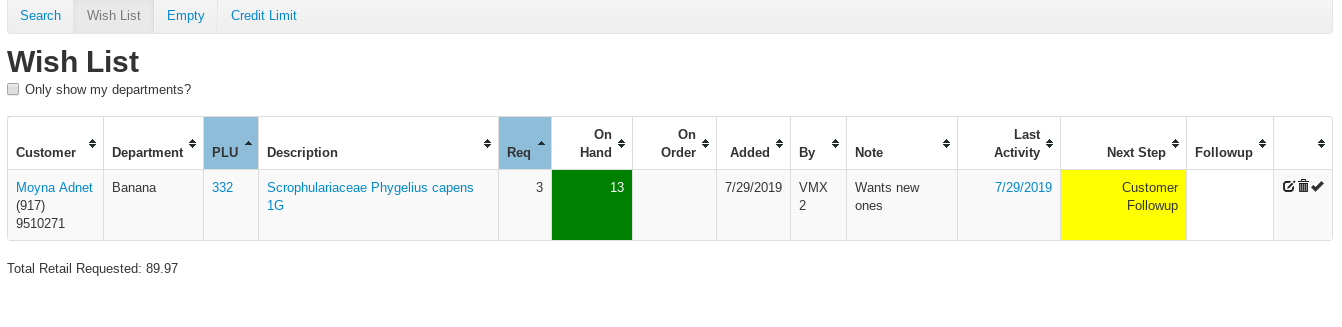
Tabs at the top switch between Active (open requests — the default view), Fulfilled, Archived, and Analytics.
Filters
- Only show my departments? — only show entries assigned to the departments you're responsible for.
- Include archived? — also show archived requests (shown greyed out).
- Include fulfilled? — also show requests that have already been fulfilled.
- All stores — on multi-store systems, show requests from every location instead of just the current store.
The download icon at the top right exports the table to a CSV file.
Wish List Item Fields
- Customer- The name and phone number of the Customer who requested an item
- The name of the customer will be hyperlinked to their profile page
- Department / Sub. Dept.- The assigned department (and sub-department) of the item requested, or the department chosen by the employee who created the Wish List entry for an item that does not yet have a product number.
- PLU- The item number of the product requested, if applicable
- Description- The name and size of the product requested
- If an item number for this product already exists, the Description will be hyperlinked to the item page
- Req- The quantity of the item requested
- On Hand- The quantity of the item shown on hand in inventory at the requested store location
- OH Elsewhere- The quantity on hand at your other store locations (multi-store systems only). This is useful when a customer's request can be fulfilled with a transfer from another location.
- Other Sizes- The quantity on hand of items that match the same name, variety, and color, but in a different size. For example, if a customer requests a 5-gallon Magnolia, this column might show you have 3-gallon and 7-gallon Magnolias available. (On multi-store systems there's also an Other Sizes Elsewhere column for the same thing at your other locations.) This information is for staff use only — customers are never automatically contacted about alternate sizes.
- On Order- The quantity of the item shown on order on all Purchase Orders listed
- Stock Status- The item's stock status, filterable from the column header
- Added- The date the Wish List entry was added
- By- The name of the employee that added the entry
- Note- Any notes added to the entry
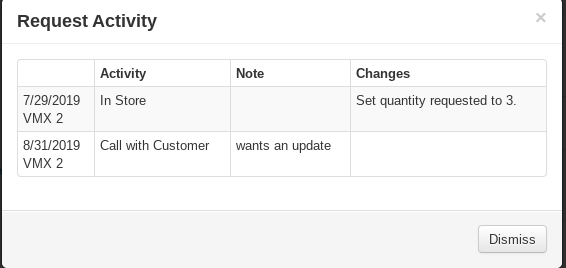
- Last Activity- The date the last activity for the entry was recorded. You can click the date listed to view the history of activity for the entry as shown below. The history shows the name of the employee who made the change, the date of the change, the name of the activity, the notes made, and the changes that were made to the entry.
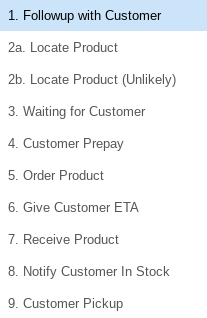
- Next Step- The Next Step shows the next action that needs to be taken in order to fulfill the request, chosen from a numbered list of steps (from "1. Followup with Customer" through steps like "Order Product", "Notify Customer In Stock", and "Customer Pickup"). You can sort and filter the Wish List entries by this column and change the step at any time from the edit dialog.
- Followup- This is where the follow-up date, if one is set, is shown.
- Requested By- The date the customer needs the item by, if one was set (entered as Requested By Date in the edit dialog). Dates that have already passed are highlighted.
- Edit/Delete/Fulfill icons- The icons at the right end of each row:
- Edit (pencil) — change any part of the entry or log an activity. The edit dialog also has an Archived checkbox — this is how a request gets archived.
- Delete (trash) — remove the entry. You'll be asked to confirm: "Delete this customer request? If the request is complete, you should fulfill it instead." This action cannot be undone.
- Fulfill (checkmark) — mark the entry as complete. You can fulfill an entry manually with this icon, or VMX POS will automatically prompt the cashier to fulfill when the requested item is sold to the requesting customer at the register.
- Fulfill & Reserve — fulfill some or all of the request and reserve that quantity in inventory for the customer at the same time. You're asked how many you're fulfilling; if it's fewer than requested, the remainder stays on the Wish List.
Changing Several Requests at Once (With Checked)
To change the Note or the Requested By date on many Wish List requests at the same time:
- Tick the checkbox at the left of each request you want to change.
- Click With Checked above the table.
- Choose one:
- Set Note… — type the note, then choose Replace each note (the new text replaces what is there) or Add to the end of each note (the new text is added after each request's existing note, so their own notes are kept).
- Set Requested By… — pick the date. Leave it blank to clear the date on every checked request.
- Click Save.
The rows update in place and stay ticked, so you can do a second action on the same requests right away (for example, set a note and then a Requested By date). Each changed request gets a Bulk Edit line in its activity history showing what was changed and who changed it.
Closing a Request: Fulfill, Archive, or Delete
There are three ways to close out a Wish List request. Choosing the right one matters:
- Fulfill — The customer received their item. Use this when the customer purchases the requested product, or when the request has been satisfied. The system will prompt the cashier to fulfill automatically when the requested item is sold to the requesting customer at the register.
- Archive — The request is no longer active, but you want to keep the record. Check the Archived box in the entry's edit dialog. Use this when a customer stops responding, when the item can't be sourced, or when the season ends. The full activity history is preserved (archived requests live on the Archived tab), so if the customer comes back months later asking about their request, you can pull it up and show exactly what happened — when you called, when you left voicemails, etc. This protects your team from "you never called me" disputes.
- Delete — Permanently removes the request and all its history. Use this only when the request was created in error. Once deleted, there is no record that the request ever existed.

Total Retail Requested
This line at the bottom of the wish list entry page shows the total amount of retail dollars associated with the sum of the wish list entries shown. Filters such as Only show my departments? change which entries are counted in the total.