Payroll
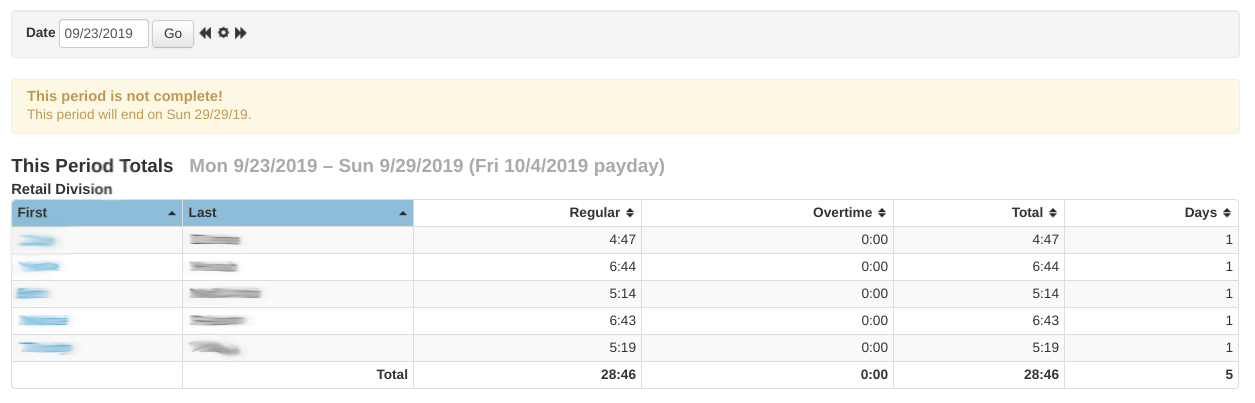
View employee hours worked for the pay period, broken down by division.
VMX now also shows the weekly regular and overtime totals!
Info
Navigate to previous pay periods using the date option at the top of the page!
Select an employee's name to see each swipe for that employee for the pay period you are viewing or select "All" to view all swipes for all employees for the pay period. This opens the Employee Time Slots page, where swipes can also be corrected or added.
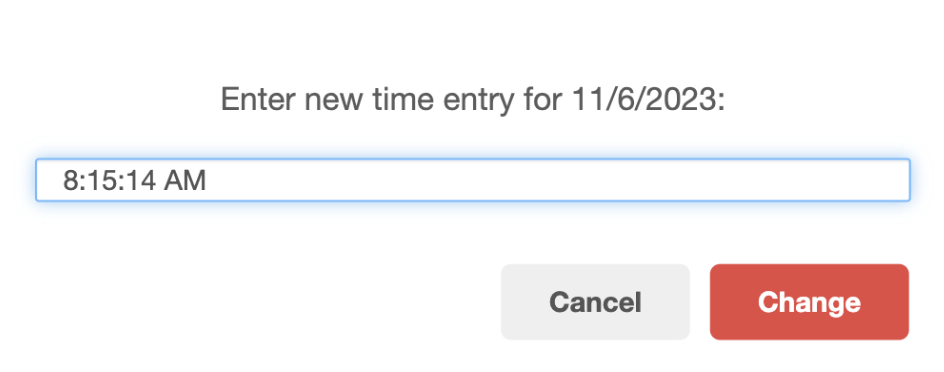
To edit a swipe, simply click on the entry and change the time. To delete a swipe, click on the entry and clear it.\
Group payroll by customer instead of by division
Use the Group by menu at the top of the Payroll page to switch between Division and Customer. Customer breaks each division's hours down by the customer or job employees were clocked in to, so you can see how much labour a job absorbed in the pay period.
Info
The Customer option is enabled per-client by VMX. If you don't see the Group by menu and you'd like it turned on, contact help@vmxllc.com.
Grouped by Customer, the page shows (the exact layout varies a little by store setup):
- One table per customer, under a heading for each division.
- A No customer assigned table for hours clocked without a customer or job attached. Most retail hours land here — it is not an error.
- A Totals by Employee table, matching what you'd see grouped by Division.
- A Totals by Customer table, with one row per customer summed across every division.
Each table has its own Download CSV link, and the file is named for the division and customer so separate downloads don't overwrite each other.
How overtime is calculated on the Payroll page
Overtime is worked out from each employee's total hours in a week, across every division, customer and job they clocked in to — not from each division or customer separately. Hours past the weekly overtime threshold (40 hours for most stores) are overtime; the rest are regular.
This means the overtime figure for a single customer is only that customer's share of the employee's overtime for the week. An employee who works 30 hours on one job and 30 hours on another has worked 60 hours and earned 20 hours of overtime — 20 hours appear against the job they were working when they passed the threshold, not 0 against each.
Because of this, the Overtime column adds up to the same total whether you group by Division or by Customer, and both match the Totals by Employee table.
PTO hours on the Payroll page
When PTO (paid time off) tracking is turned on for your store, the Payroll page shows a PTO column — between the overtime columns and Total — whenever employees have PTO recorded during the pay period you are viewing. Each employee's row shows their PTO hours used in the period, and the bottom row shows the total for all employees.
- PTO hours are not included in the Total column — Total is regular plus overtime hours actually worked.
- If nobody used PTO during the period, the PTO column doesn't appear at all. That's normal, not an error.
PTO balances, grants, and usage are recorded on each employee's PTO tab — see Employee PTO.
Info
PTO tracking is enabled per-client by VMX. If you'd like it turned on, contact help@vmxllc.com.
Exporting Payroll Data
To export the payroll table you are viewing, click the .png) icon on the top right of the payroll table!
icon on the top right of the payroll table!
Download a payroll file for your payroll provider (Download CSV)
The Download CSV link at the top of the Payroll page downloads a payroll file covering the pay period you are viewing, ready to import into your payroll software.
The layout of this file is configured per-client by VMX to match the format your payroll provider expects. If you need payroll data in a custom format to match your payroll processing software, contact help@vmxllc.com — once set up, the custom export is what the Download CSV link at the top of the page produces.
When the export format separates regular and overtime hours, overtime is split by each employee's total hours in the week, the same way the Payroll page itself does — see How overtime is calculated on the Payroll page.
Info
Some stores also have a Paychex CSV link next to Download CSV that exports individual clock-in and clock-out punches instead of hour totals. This is enabled per-client by VMX — if you'd like it, contact help@vmxllc.com.