Price Rule
A Price Rule controls how one item is priced at the register — most often a quantity deal such as "buy one get one free" or "5 for $10.00". Rules are set on the item itself: open the item in Inventory, click the Price Rule tab, choose a rule from the dropdown, fill in the deal rows, and click Save. There are 6 rule types, described below.
Set up a price rule on an item
- Open the item in Inventory and click the Price Rule tab.
- Choose a type from the dropdown: Regular Price, Group Threshold, Price Breaks (Prorated), Price Breaks (Non-prorated), Price Required, or Price Group Member.
- Fill in the deal table. For the quantity rules the columns are Deal Quantity, Deal $ Price, Deal % Discount and Description (optional).
- Enter either a Deal $ Price or a Deal % Discount on a row — never both.
- Deal % Discount is a whole number: enter
10for 10% off. It works on Group Threshold and Price Breaks (Prorated) only — on Price Breaks (Non-prorated) always fill in Deal $ Price (see that section below). - Description (optional) is what prints under the item on the sale and on the receipt. Leave it blank and VMX writes one for you, such as
2 for $4.00or$10.00 for 5 or more.
- Optionally set a Starts and Expiration date, and limit the rule to certain Classes (see the sections below).
- Click Save. A checkmark appears next to the button when the rule is saved.
A few things worth knowing:
- Price Breaks (Prorated) and Price Breaks (Non-prorated) can have several rows — one per quantity tier. Save, and a fresh blank row appears for the next tier. Group Threshold uses a single row.
- Deal rows are stored per rule type, so switching the dropdown to a different type and back brings your original rows back.
- Quantities count across the whole sale, not just one line: two separate lines of the same item add together when the register decides whether the deal is met. Items being returned on the same sale are counted separately from items being sold.
Regular Price
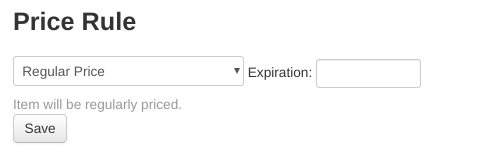
The first and most simple is the regular price setting, which is obviously the default setting for all items. The price will be listed normally on sales.
Group Threshold
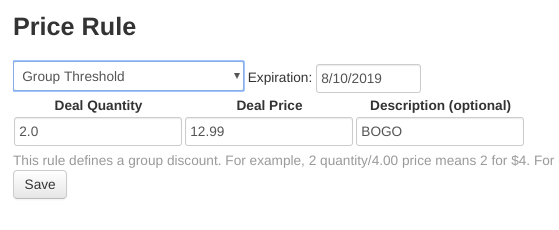
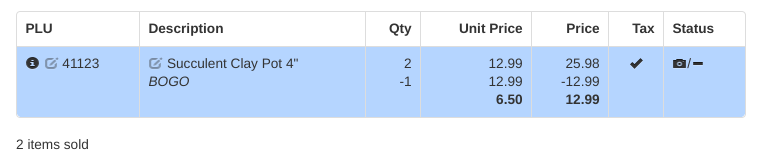
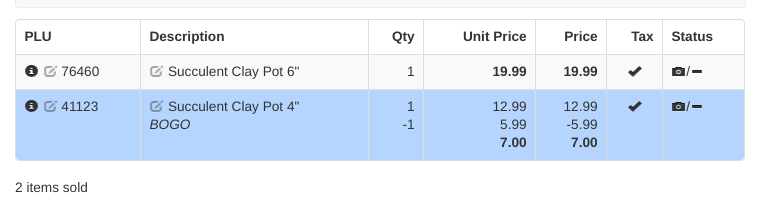
Think “BOGO” when you hear group threshold. This type of price rule applies once the Deal Quantity is reached on the sale. To set up a “buy one get one free” sale, select Group Threshold from the drop down, enter the quantity as 2, the deal price as whatever the regular retail price for one of the items is, and the description as “BOGO”. This will automatically apply when 2 or more of the item are rung up.
The Deal $ Price on a Group Threshold rule is the price for the whole group, not the price of one item — 2 quantity / $4.00 price means "2 for $4.00". The deal applies in whole groups only: ring up 3 and the customer gets one group at the deal price plus one at regular price. You can use Deal % Discount instead of a price ("2 for 10% off"), but not both on the same row.
Price Breaks (Prorated)
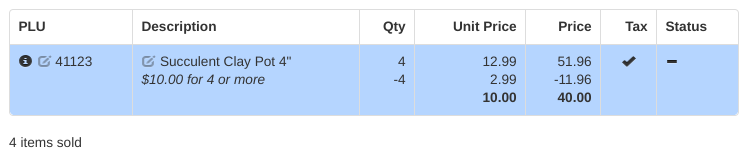
This rule defines a prorated discount. For example, 5 quantity/10.00 price means if 5 or more are purchased, then all purchased are sold for $10/each. If less than 5 are purchased, no discount is given. To set up a prorated rule, the quantity is the minimum quantity required to get the discount and the deal price is the price per item at the qualifying quantity.
You can enter several tiers (5 for $10.00 each, 10 for $9.00 each, and so on). When more than one tier qualifies, the register applies the one that saves the customer the most.
Price Breaks (Non-Prorated)
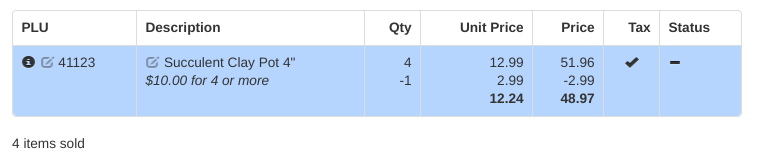
This rule defines a non-prorated discount. For example, 5 quantity/10.00 price means the first 4 are sold at regular price, then any additional are sold for $10/each. To set up a non-prorated rule, the quantity is the quantity after which a discount will be applied (for example, a quantity of 4 means that the first 3 items will always be regularly priced) and deal price is the price for the items that receive a discount.
In the dropdown this rule is labelled Price Breaks (Non-prorated). Like the prorated rule, it accepts several tiers; each tier prices the units that fall into it, and the last tier prices everything above it.
A non-prorated row can use either Deal $ Price or Deal % Discount. With a price, the qualifying units ring at that price each; with a percent, they ring at that much off their regular price. Deal $ Price is the more common choice, because the shelf price is then explicit rather than calculated.
Tip
This rule may be useful for “buy one get one for $5” type promotions.
Price Required
Register will prompt for price when rung up, defaulting to item unit price. The cashier will have the option to either click enter on the defaulted unit price or type in their own price.
Tip
This rule may be useful for variable fees, like a potting fee dependent on the size of the pot.
Price Group Member
Enter the PLU of the item that defines the price group this item should join. All items in a price group are treated as the same item when determining discounts at the register.
Choose Price Group Member and type the other item's PLU in the Price Rule Parent box, then click Save. The member item does not get its own deal rows — it borrows the parent item's rule and its deal table, and the quantities of every item in the group add together. That is how "any 3 of these 4 hanging baskets for $30.00" works: set the deal on one item and make the others members of it.
The parent item must already exist, and it cannot itself be a Price Group Member.
Limit a price rule to a date range (Starts and Expiration)
The Starts and Expiration boxes at the top of the Price Rule tab put a date window around the rule. Both are optional — leave them blank and the rule runs until you change it.
- Starts — the first day the rule applies. Before that date the item rings at its regular price.
- Expiration — the rule stops applying at the beginning of this date, so the last day it applies is the day before. Set the expiration to the day after the last day of the sale.
Outside the window the item behaves exactly as if it were set to Regular Price — this is worth remembering for Price Required items too, which stop prompting for a price once the window has passed.
A day or two after an expiration date has passed, VMX automatically switches the item back to Regular Price and clears the Expiration box, so the rule doesn't sit there half-alive. The deal rows are left alone, so the numbers are still there if you want to switch the rule back on.
Your store can also subscribe someone to the Price Rules Expiring (Daily) email alert on the admin Emails page — see Emails. The alert goes out overnight and lists the items whose Expiration date has arrived, so treat it as confirmation that those rules have stopped rather than advance warning.
Use a price rule for a one-day or event price
A price rule can put a single item at a set price for a day or a few days, such as "$6 a glass at Saturday's event". A promotion can't set a whole-dollar price on one item as simply, and it skips items marked Discountable: Never; a price rule applies to them.
- On the item's Price Rule tab, choose Price Breaks (Prorated).
- Add one break: Quantity 1, Deal $ Price the event price (for example 6.00).
- Set Starts to the first day of the event and Expiration to the day after the last day.
- To give the price only to some customers (for example a wedding party's class), choose them in Classes.
- Click Save, and ring one item on a register on the day to check the price.
Things to know before you use it:
- An item has only one price rule. Setting the event price replaces any quantity deal the item already had. When the event ends, VMX switches the item to Regular Price, not back to the old deal, so re-enter the old deal afterwards if you still want it.
- One price per day. An item can't have two price rules at once, so "$8 for the public and $6 for the wedding" on the same day needs the Classes limit (or a price level for one class) rather than two rules.
- Whole days only. Starts and Expiration are dates; there is no time of day. For a sale that starts or ends at a set time, use a promotion.
- Your online store doesn't check the dates. If your shop shows price-rule deals, it shows the deal whether or not the dates are current, so an event-only price can show online too.
Limit a price rule to certain customer classes
The Classes box on the Price Rule tab lists your customer classes by Description. By default every class is selected, which means the rule applies to everyone. Select only some classes and the deal applies only to sales ringing under those classes — useful for a deal you want your wholesale or landscaper accounts to get, but not walk-in retail (or the other way round).
The class the register compares against is the one chosen in the customer-class dropdown on the sale screen. That dropdown has no printed label — it shows ... until a class is picked.
On a plain walk-in sale with no class chosen, the register falls back to your retail class — the class whose Name (not its Description) contains RETAIL. So if you leave retail out of the Classes list, ordinary walk-in sales will not get the deal, which is usually the intent but is easy to do by accident. If your store has no class named RETAIL at all, the class check is skipped on those sales and the deal applies.
For more on how classes are set up and how they price items, see Customer Classes & Price Levels.
Price Rule Stacks with Promo
Normally a quantity deal and an automatic discount don't both apply to the same line: if the item already got a discount from a promotion, a price level, or an automatic customer-class discount, the price rule is skipped.
Tick Price Rule Stacks with Promo on the Price Rule tab and that check is skipped for this item — the automatic discount and the quantity deal both come off. This is the one place two automatic item discounts genuinely stack, so use it deliberately and ring a test sale to confirm the final price.
One caution: stacking doesn't help when the other discount sets a fixed price on the line (a Fixed Price price level, or a fixed-price promotion). The register treats a set price as a hand-entered price, and quantity deals never apply on top of one.
Price rules and promotions: which one wins
When an item has both a quantity deal (its Price Rule) and a promotion covering it, only one of them normally applies — unless the item has Price Rule Stacks with Promo ticked on its Price Rule tab, which lets both come off.
Whether the quantity deal is allowed to beat the promotion is a per-store setting configured by VMX:
- On stores where it is switched on, the register compares the two and lets the bigger saving win — so a "5 for $10.00" break can override a 10%-off sale. The comparison covers Group Threshold and Price Breaks (Prorated) only.
- On stores where it is switched off, the promotion wins and the price rule never applies while the promotion is running.
Price Breaks (Non-prorated) is never part of that comparison: on every store, a promotion on the item beats a non-prorated price break. If you need both, tick Price Rule Stacks with Promo on the item.
That comparison doesn't look at the price rule's Classes list. On a store where it is switched on, a sale whose customer class the rule leaves out can lose the promotion to the price rule and then not get the price rule either. If you limit a price rule to certain classes and the item is also on a promotion, ring a test sale under an excluded class.
If you aren't sure which way your store is set, ring one item through on a register before the sale goes live, or contact help@vmxllc.com.
Why a price rule isn't applying at the register
Work down this list in order — the first four causes account for most "I set it up and nothing happened" reports.
- Somebody typed a price on the line. A manual price — the Manual Price key, or changing Each Price in the Receipt Item popup — kills the quantity deal for that line outright. This is the single most common cause of a deal not coming off. Delete the line and ring it again at its regular price.
- Apply Price Rules is switched off for the division. Each division has an Apply Price Rules setting (Admin → Registers → Divisions tab). When it is off, every price rule is dead for sales rung under that division, with nothing on screen to say why. See Registers (Admin).
- The sale's customer class isn't in the rule's Classes list. Check the Classes box on the item's Price Rule tab — a walk-in sale with no class selected counts as your class named RETAIL.
- The dates. The rule hasn't started yet, or the Expiration date has arrived — the rule stops at the beginning of the expiration date, not the end of it.
- The line already got another automatic discount — a promotion, a price level, or an automatic customer-class discount. Unless Price Rule Stacks with Promo is ticked on the item, the quantity deal is skipped in favour of the discount that's already there.
- It's a web order. A sale brought in from your online store gets no price rules at all, and no promotions, price levels or automatic class discounts either — the prices that came over with the order are kept as-is.
- Not enough quantity yet. Group Threshold applies in whole groups; price breaks need the threshold met. Quantities do add up across separate lines of the same item on one sale, and across every item in the same price group — but items being returned on the sale count separately from items being sold.
- Some stores have extra restrictions — for example only applying price rules when a customer is attached to the sale, or only at one location. These are configured per-client by VMX; contact help@vmxllc.com if a deal is behaving differently than the rules above describe.
An item's Discountable setting is not on this list: unlike promotions, a quantity deal still applies to an item marked Discountable: Never.
Error messages when saving a price rule
These appear as a popup when you click Save on the Price Rule tab.
- "Cannot set both deal price and percent discount." — a deal row has something in both Deal $ Price and Deal % Discount. Clear one of them.
- "This price rules requires at least 1 deal." — you picked a quantity rule (Group Threshold or either Price Breaks rule) without filling in a deal row. Enter a Deal Quantity and a price or percent.
- "Deal quantity must be more than 0." — a deal row on Group Threshold or either Price Breaks rule has a Deal Quantity of 0. A quantity of 0 is always satisfied, so the deal would apply to every sale no matter how few the customer buys — in effect changing the item's price rather than giving a quantity discount. Enter the number the customer has to buy to earn the deal. A Deal $ Price of 0 is allowed, for a genuine free-item deal; it's only the quantity that has to be more than 0.
- "Price rule child cannot be its own parent." — the Price Rule Parent PLU is this item's own PLU. Enter the PLU of the item that holds the deal.
- "The price rule parent is not a valid item." — the Price Rule Parent PLU doesn't match any item. Check the PLU (it's the PLU, not the description or a barcode).
- "The price rule parent item cannot also be a price rule child." — the item you pointed at is itself a Price Group Member. Point at the item that actually holds the deal.
- "Failed saving deal: ..." — a value in the deal row couldn't be saved. Check that Deal Quantity and Deal $ Price contain numbers only.