Receipts
What's on the Receipts report?
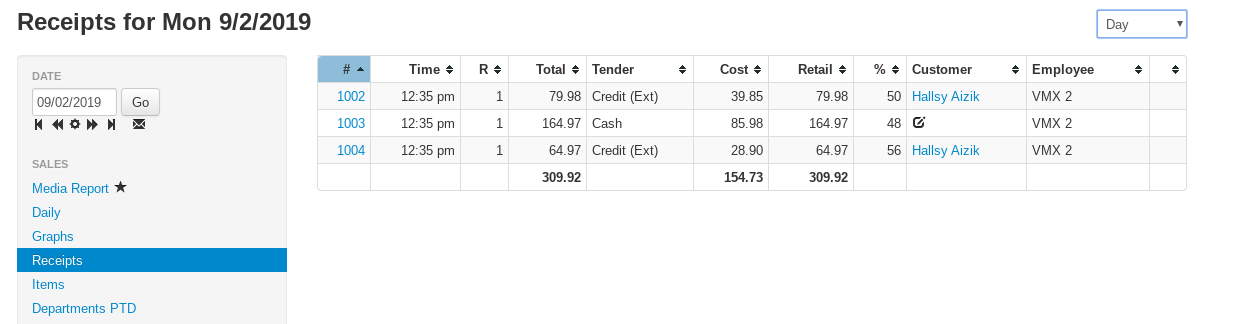
The Receipts report lists every receipt for the selected period, one row per receipt, with totals at the bottom of the table.
Filter the Receipts report
The controls at the top right of the Receipts report:
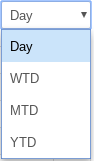
- Period dropdown — Day, WTD (week to date), MTD (month to date), or YTD (year to date). To change the report date, use the calendar in the report menu that slides out from the left edge of the page.
- All Divisions — appears when your account has more than one division; limits the list to one division.
- Customer # — enter a customer number to show only that customer's receipts.
- All Detail / Hide Profit — choosing Hide Profit removes the Cost and % (margin) columns.
- This Store / All Stores — on multi-store accounts, show just the store you're signed into or every store's receipts.
- Only refunds — check to show only refund receipts (receipts with a negative subtotal).
View or fix a receipt from the Receipts report
Click anywhere on a receipt's row to open a popup showing that receipt's line items — with the popup open, the up and down arrow keys step through neighboring receipts. Click the receipt number in the # column instead to open the receipt on the register screen.
If a receipt has no customer attached, a pencil icon appears in its Customer column — click it to enter a Customer Number and attach the sale to a customer account.
Tip
Click any column heading to sort by that column, and use the filter boxes under the headings to narrow the list. The download icon at the top right saves the table as a CSV file, and the magnifying glass opens Find Receipt.
Receipts report table columns
- # — the receipt number, linked to the register screen with the receipt loaded
- Time (labeled Date for WTD/MTD/YTD) — when the transaction was completed
- R — the register the sale was completed on
- Total — the receipt total (subtotal + tax)
- Tender — the type (or types) of tender applied to the sale
- Cost — the cost of goods sold on the receipt
- Retail — the total of the sale before tax; includes gift cards, store credits, and payments on account
- % — the margin of the receipt (accounting for any discounts); gift cards, payments, and fee lines are excluded from the margin calculation
- Customer — the customer attached to the receipt, linked to their profile
- PO # — the purchase order number entered on the receipt, if any
- Employee — the employee who completed the sale
- Non-taxable receipts are flagged with a no-tax icon, and void activity is labeled VOIDS (this receipt reverses another receipt) or VOIDED (this receipt was reversed)
- Div — the receipt's division (shown when your account has more than one division)
The bottom row totals the Total, Cost, and Retail columns for the listed receipts.