Order Planning
What's on the Page?
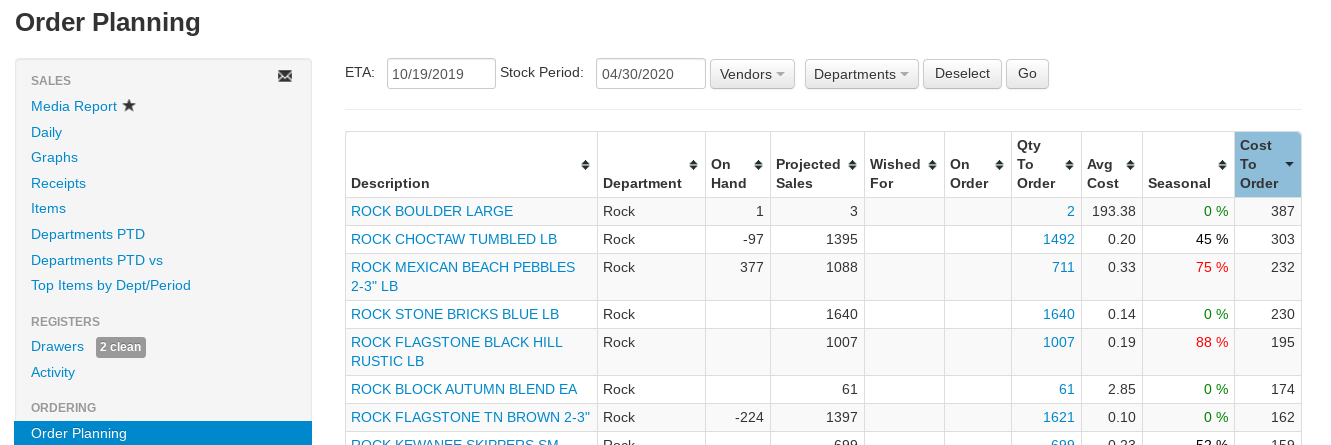
Order Planning is VMX's most powerful purchasing tool. It identifies products that are over- or understocked by analyzing your sales history, current inventory, open orders, and customer demand — then recommends exactly how much to buy to be stocked through a target date.
- ETA — The date you expect the order to arrive. This can be as soon as tomorrow or months out for seasonal bookings.
- Stock Period — The date you want to be stocked through. Everything between ETA and this date is the window the report plans for.
- Choose vendor... — Filter to one or more vendors when building a purchase order, or leave blank to see all vendors.
- Departments — Check specific departments, or leave all unchecked to include every department. Select All checks every department; Deselect clears them all. When you first open the page, VMX pre-selects the departments where you are assigned as the Primary Employee, Secondary Employee, or Tertiary Employee buyer for your store.
- All Brands — Optionally filter to a single brand.
- All Divisions — Optionally filter sales history to a single division (shown when your company has more than one division).
- Ignore 'Wished For' when calculating 'Qty To Order' — Check this to leave customer requests out of the suggested order quantity.
- Use fixed-year averaging (include years with 0 sales) — Check this to count zero-sales years as real zeros in the average instead of ignoring them (see "How the Calculation Works" below).
- All Stores (company-wide totals) — For multi-store companies, sums every store's on-hand, on-order, requests, and projections into one company-wide row per item.
- Go — Regenerates the report with your current inputs.
Tip
For in-season replenishment, a stock period of 2–3 weeks out is typical. For seasonal bookings (e.g., ordering hard goods in fall for spring), you might set ETA to February and Stock Period to July.
How the Calculation Works
Order Planning examines up to 5 years of sales history using a time-weighted average — the most recent year counts the most, and each earlier year counts a little less. By default, years with zero sales are treated as "no signal" rather than zero demand — so a new item or a year you were closed doesn't drag your projections down artificially. Check Use fixed-year averaging (include years with 0 sales) if you want zero years averaged in.
For each item, the report calculates:
- Current on-hand inventory (less any quantity reserved for customers)
- Expected sales between now and ETA — inventory you'll sell before the order even arrives
- Expected sales during the stocking period — what you need to cover ETA through the Stock Period date
- Existing open orders — quantities already on purchase orders inbound before the Stock Period date
- Customer wish-fors — outstanding requests from customers
The suggested Qty To Order is:
(Expected sales before ETA) + (Expected sales during the stocking period) + (Customer wish-fors) − (On hand, less reserved) − (Open orders)
If this number is negative, you already have more than you need. If positive, that's how much to order.
Reading the Report
- PLU and Brand — Shown for some companies (enabled per-client by VMX; contact help@vmxllc.com). PLU links to the item page.
- Description — Item name and size, linked to the item page. The small clipboard button copies the item's PLU.
- Department — The department (and sub-department, if any) the item belongs to
- On Hand — Current quantity in inventory, less any reserved quantity. An asterisk (*) appears when some quantity is reserved for customers — hover over it to see how much.
- Projected Sales — Expected units to be sold between today and the Stock Period date, with a small sparkline graph of the past five years' sales for the same window. Hover over the number to see each year's figure.
- Wished For — Quantity requested by customers. Click the number to see each request — customer, quantity, date added, requested-by date, and note.
- On Order — Quantity already on open purchase orders. Click the number to see which orders.
- Qty To Order — Suggested order quantity to be stocked through the Stock Period date
- Each Cost — The item's cost, using Market Cost if one is set, otherwise the cost from the most recent receiving, otherwise the average cost
- Status — The item's Stock Status from the item page (Default, Staple, Discontinued, or Upon Request)
- Cost To Order — Estimated total cost of the suggested Qty To Order (Qty To Order × Each Cost). A grand total appears at the bottom of the report. When you type in the filter boxes at the top of the columns, the grand total and the item count below the table change to include only the rows that are still shown.
Tip
A negative Cost To Order means the report is suggesting you have more than you need through the stocking period — you're overstocked relative to projected demand.
Which Items Appear on the Report
An item shows up in Order Planning when its Allow Reorder? checkbox (on the item page's Ordering section) is on, and at least one of the following is true:
- It has projected sales for the stocking period and its Stock Status is Default or Staple
- It has quantity on hand
- It has quantity on order
- It has outstanding customer wish-fors
In practice this means:
- Staple — "Never out" items; treated like regular items and always planned when they have sales history.
- Discontinued — Excluded from sales-history planning. A discontinued item only appears while it still has on-hand, on-order, or wished-for quantity.
- Upon Request — Also excluded from sales-history planning; appears when there is on-hand, on-order, or wished-for quantity — so a customer request is what typically brings one onto the report.
Advanced Uses
Finding Overstock
To identify items where you have more than a year's supply, set the ETA to today and the Stock Period to one year from now. Any item showing a negative Qty To Order (or a very large "on hand" relative to projected sales) is overstocked. These are candidates for discounting, reduced repurchase, or closeout.
Seasonal Bookings
Order Planning works well for long-horizon seasonal buying. Example: in September, set ETA to February (when hard goods arrive) and Stock Period to July (when you want to be sold through). The report will factor in a full season's projected sales and tell you what to commit now.
Building Purchase Orders Directly
If you have ordering permission, the Qty To Order number is a link. Click it to open the Add Item to Purchase Order window, where you can pick one of your recent open POs (or --- New PO --- to start a new one and choose its vendor), adjust the Quantity and Unit Cost, add an optional Note, and click Add. The row's On Order and Qty To Order figures update immediately — no need to re-enter items manually.
Order multiples when adding to a PO from Order Planning
In the Add Item to Purchase Order window on Order Planning, items bought in packs get a drop-down list on the quantity box: click the box to see the first five multiples of the pack size (for a pack of 64: 64, 128, 192, 256, 320) and click one to fill it in. If your company enters quantities per store, the window shows a Qty box for each store, and the list drops down on every one of them.
The pack size is the OM (Order Multiple) on the item's part number for the selected PO's vendor, when that is more than 1; otherwise it is the item's own Order Multiple from the item page. With --- New PO --- selected, the item's Order Multiple is used. The list is only a guide — you can still type any quantity. No list appears when the item has no pack size set.
Exporting
Use the download icon above the table to export the report to CSV for custom analysis or sharing with vendors.
Tips for Accuracy
Info
Order Planning is only as accurate as your underlying data. Two things matter most:
- Inventory accuracy — If your on-hand quantities are wrong, the projections will be off. Regular cycle counts keep this clean.
- Sales history — New items with no history will show as overstocked (the system has no demand signal). Use your judgment for items in their first season.
The report is a complement to buyer expertise, not a replacement for it. Experienced buyers often find the system's suggestions closely match their instincts — and it's particularly valuable for newer staff who don't yet have years of seasonal pattern knowledge built up.
Related Reports
- Open to Buy — Dollar-level budget guardrail; use alongside Order Planning
- Units Sold by Period — Per-item units-sold breakdown by day, week, month, or year
- Buyer's Guide — Full purchasing workflow showing how all reports fit together