Customer Item Matching (Who Purchased...)
What's on the Page?
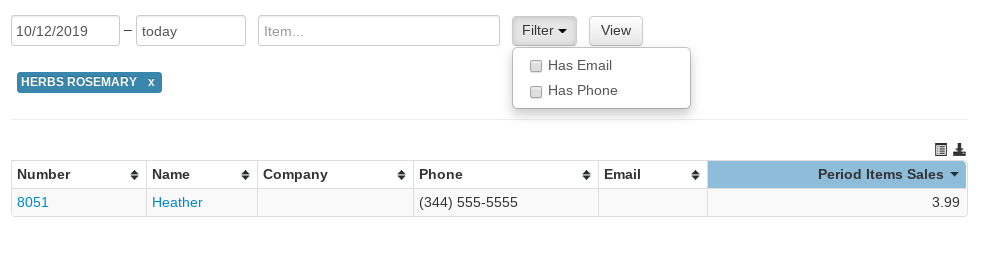
The Who Purchased... report (found under Reports → Customers) lists every customer who bought the items you specify during a date range — useful for event invitations, recalls, or targeted marketing.
Use the fields at the top of the report to customize it:
- From / To dates — Calendar pop-ups set the date range (defaults to the last week).
- Item... — Type to search for an item; selecting one adds it as a tag. Add as many items as you like. Click a tag to open that item's page.
- Department drop-down — Instead of (or in addition to) individual items, choose whole departments or department/sub-department combinations (Choose...).
- Description contains... — Match every item whose description contains a keyword (e.g., a class or event name across all its price tiers).
- Filter drop-down — Limit results to customers that have contact information on their account: Has Email, Has Phone, Has Address, or Allows Email Market (customers who accept marketing email).
- View — Generates the report with your current inputs.
Reading the Report
- Number — The unique number assigned to the customer, hyperlinked to the customer page.
- Name — The customer name, also hyperlinked to the customer page.
- Company — The customer's company name (if applicable).
- Phone — The customer's phone and cell phone numbers.
- Email — The customer's email address.
- Class — The customer's class.
- Period Items Sales — The total sales dollars this customer spent on the matched items in the date range.
- Period Items Qty — The total quantity of the matched items this customer bought in the date range.
Above the table:
- Highlight icon (list icon) — Selects the whole table so you can copy it to your clipboard.
- Download icon — Downloads the report to your computer in .csv format.