Make a Combo!
What's a Combo?
Use "Make a Combo!" to exchange input items you have in stock for an output combination item. One common example is when you use a planter and flowers to make a potted arrangement for sale! This feature automatically creates an order to adjust your current inventory and transfer the cost of inventory from the inputs to the combo item.
How Do I Make a Combo?
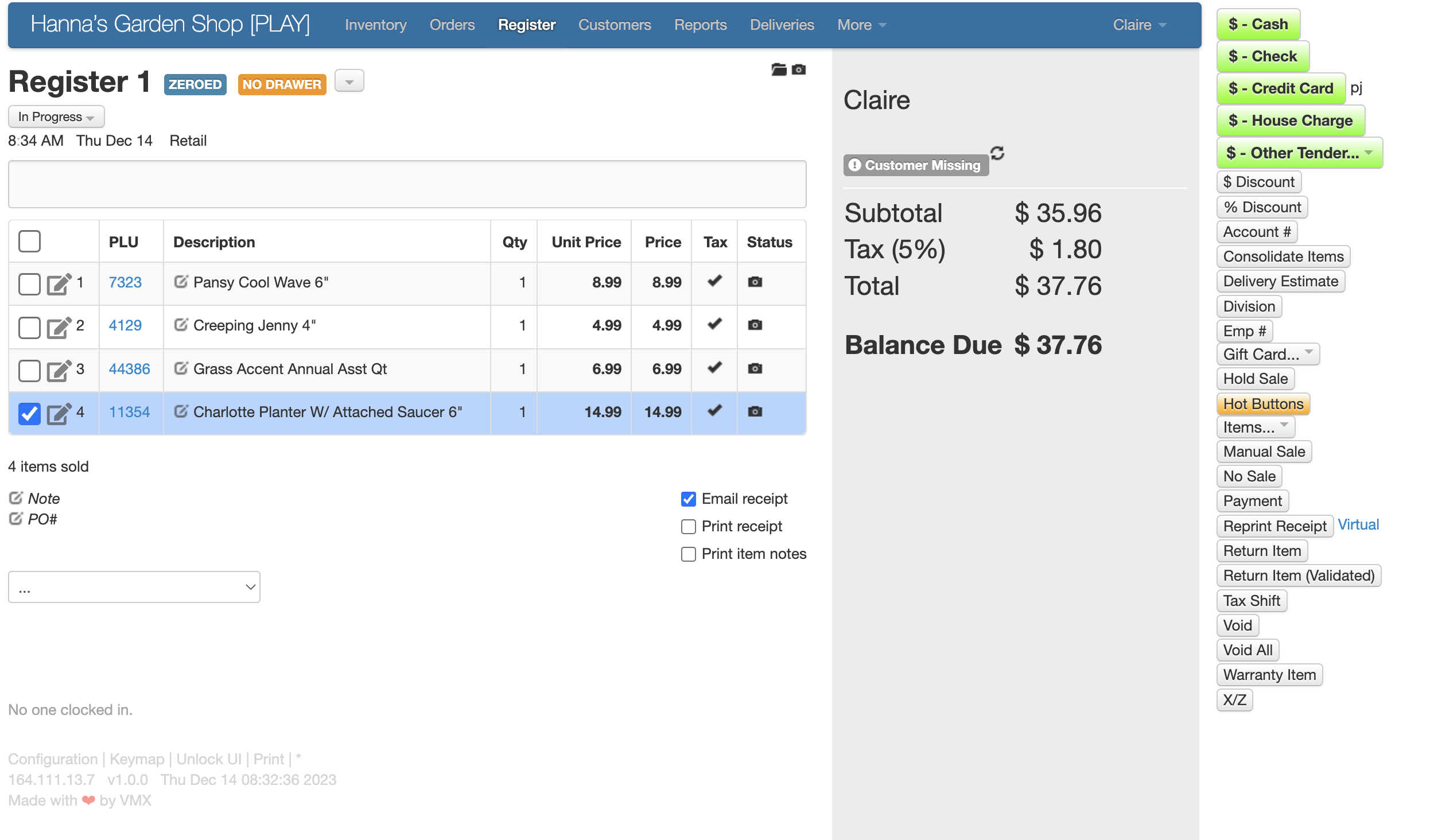
- Add the items you used to make your combo to the register screen, just like you're ringing up a sale:
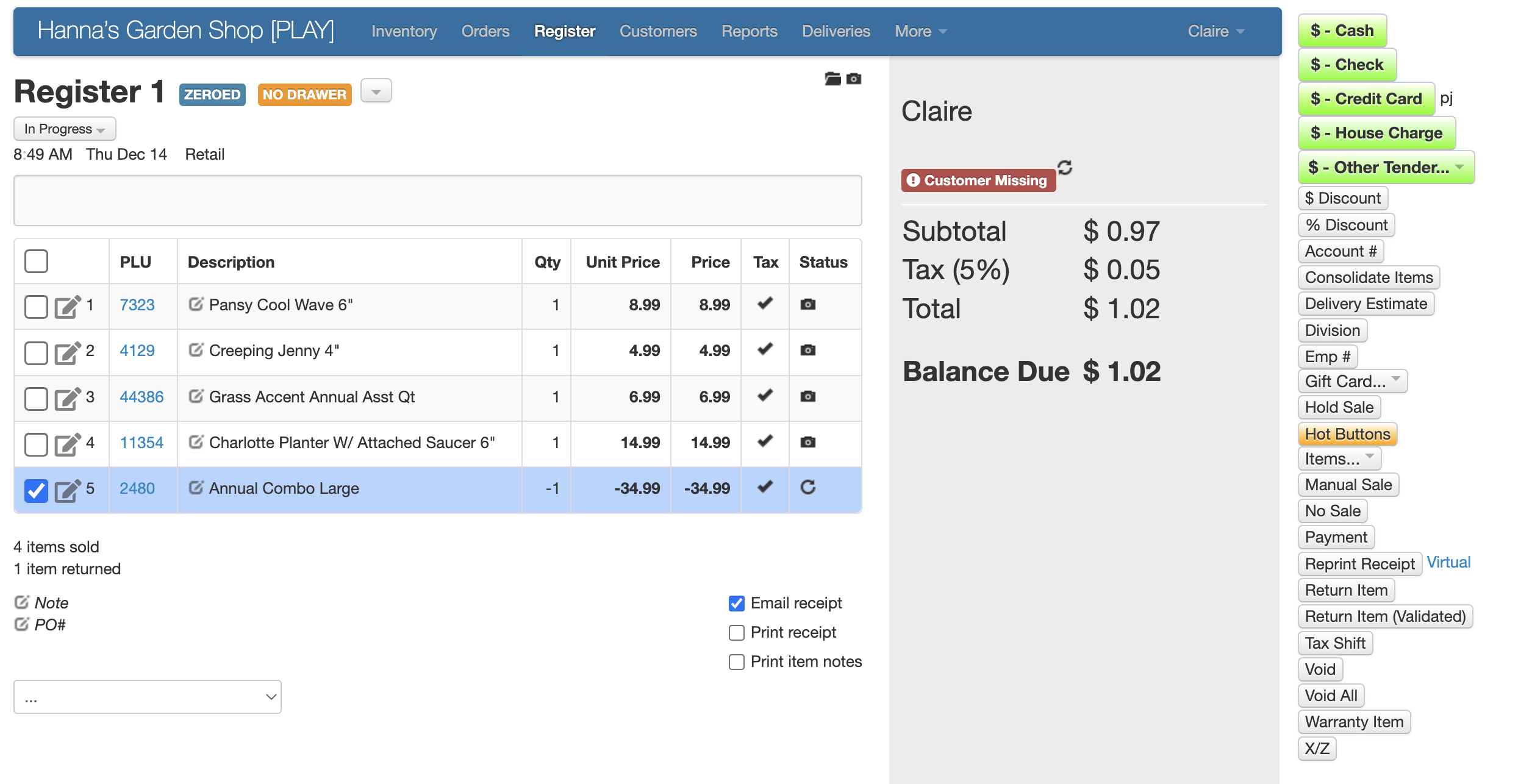
- Now, find the item you would like to ultimately sell and ring it up as a return (this example used "Annual Combo Large"). if you need help with ringing items up as a return, see Making a Sale.
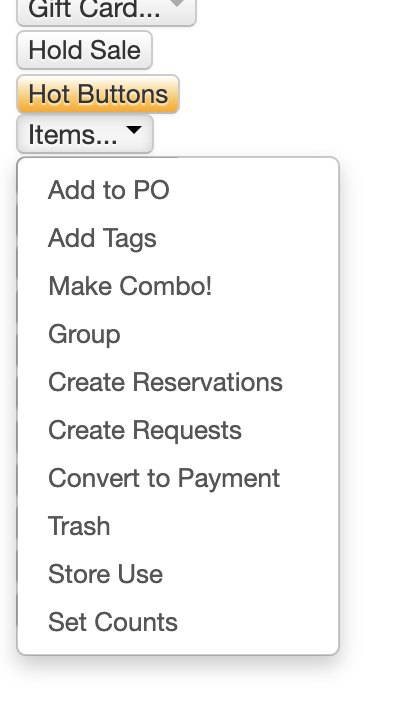
- When you've completed this step, you can now select the "Items..." dropdown button and select "Make Combo!":
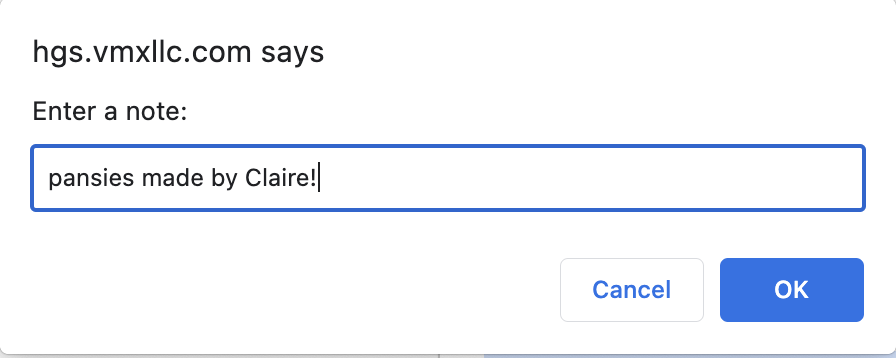
- A pop-up will appear, allowing you to make internal notes. See an example below:
Tip
Now your combo is complete!
Info
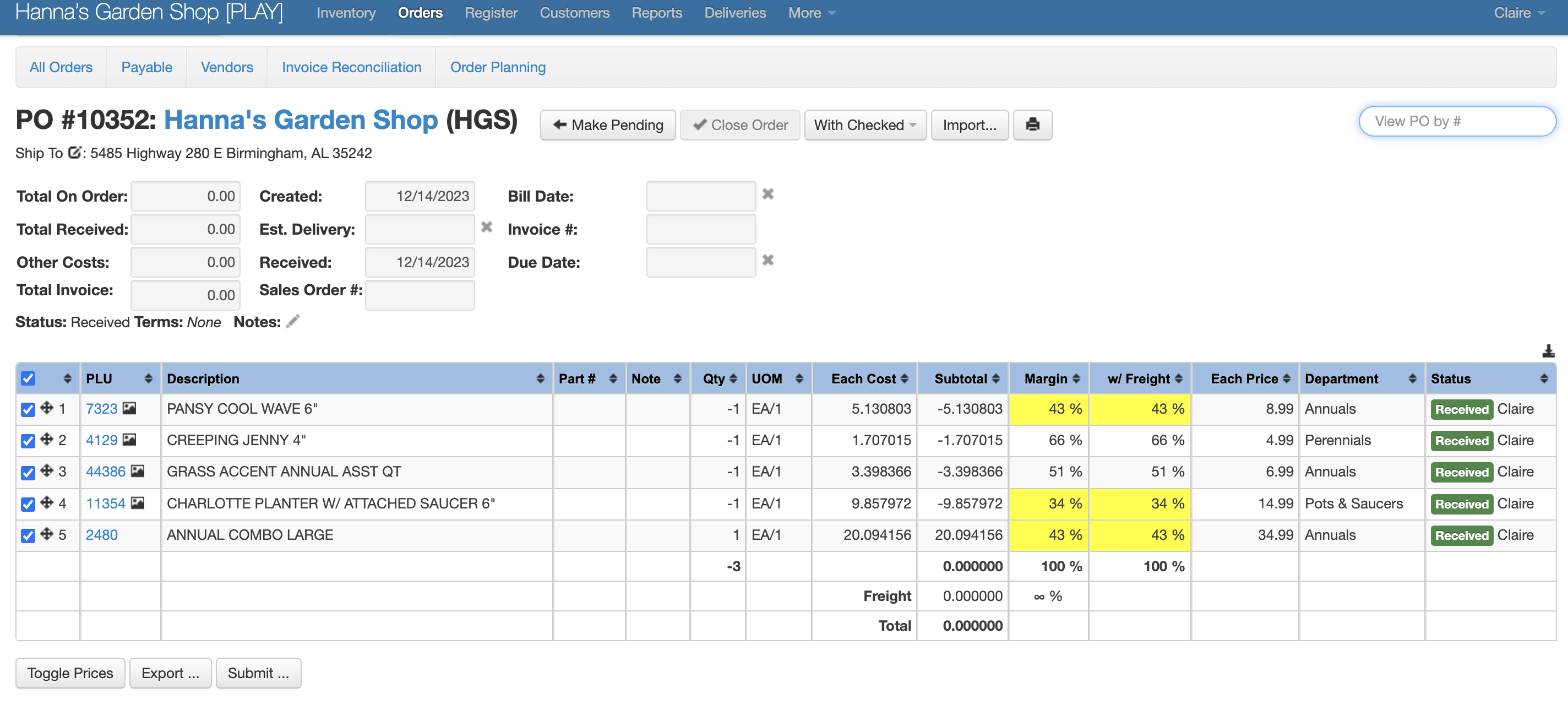
To see the Purchase Order that was automatically generated, follow the steps below:
- Select Orders on the top ribbon of your screen.
- Scroll down to the Received Order table.
- Select the order that shows your garden center as the vendor.
Info
If you have items that are not inventoried, you cannot add them to make a combo. Example, you cannot add "labor" as an item when making a combo.