Tags
To create a new tag Tags can be added button on this page, or from an items page, during the receiving process.
Tags are either designated as "On Hold" or "Ready to Print". If tags are on hold they will not print. Shift selected tags from on hold to ready, delete tags, and change the tag type by using the “With Checked:” buttons.

Find and manage tag templates by using the link highlighted in blue at the bottom of the page.
On this page you can access current tag templates as well as create new ones using the  button.

When creating a new tag template you will be taken to a pop-up giving you multiple fields to customize based on your stores preference.
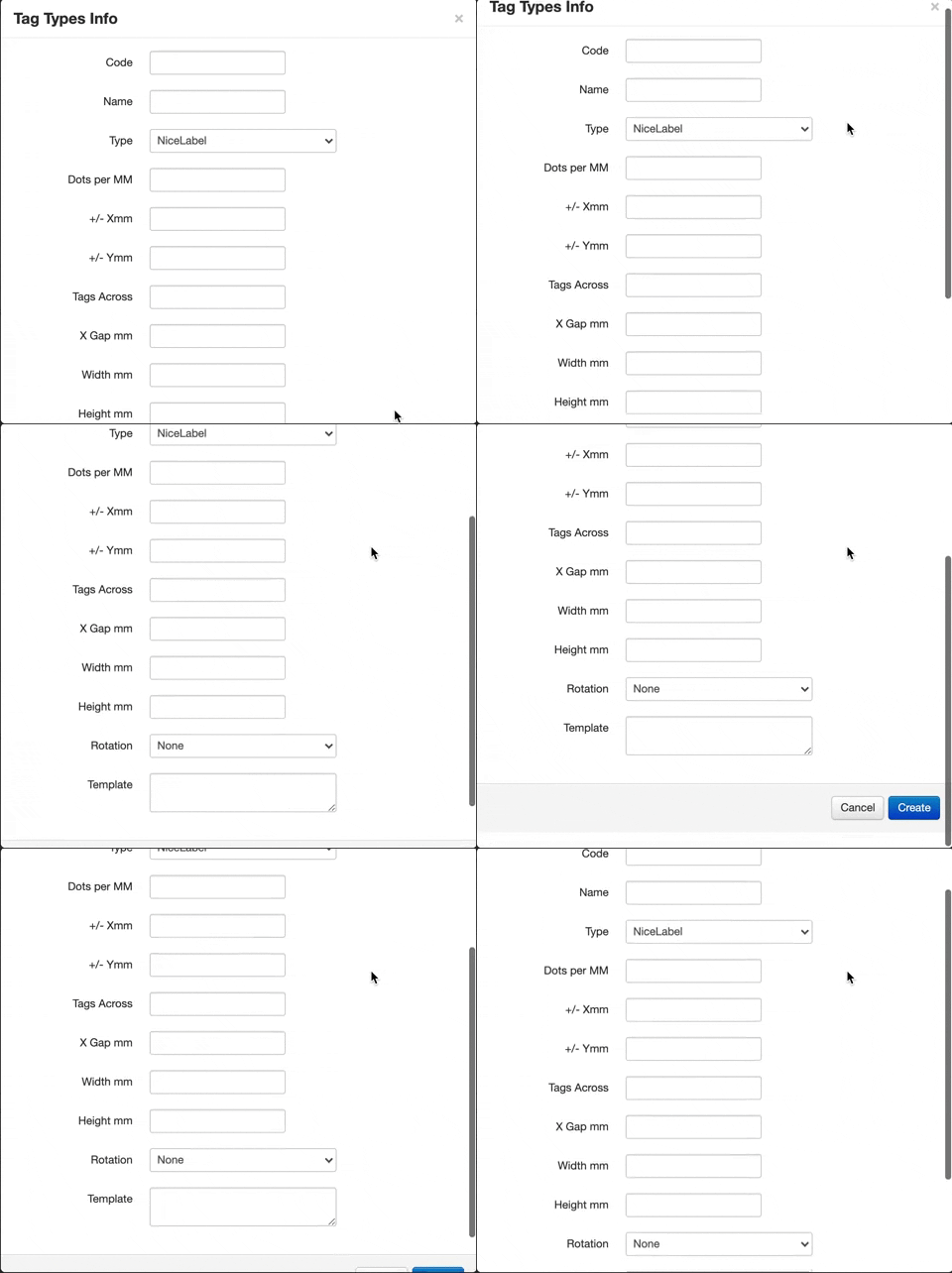
Abbreviated label for in house purposes
Tag Name
Pick from a list of templates created
Resolution of the tag, Zebra printers are calibrated at 8 or 12 dots per mm
MM shift Left or Right
MM shift Up or Down
How many tags per row on a roll.
Distance between tags on the roll.
Width of the tag
Height of the tag
Tag rotation
Leave Blank.
Tip
You can always change the setting by selecting the  button on the right hand side of the template list!
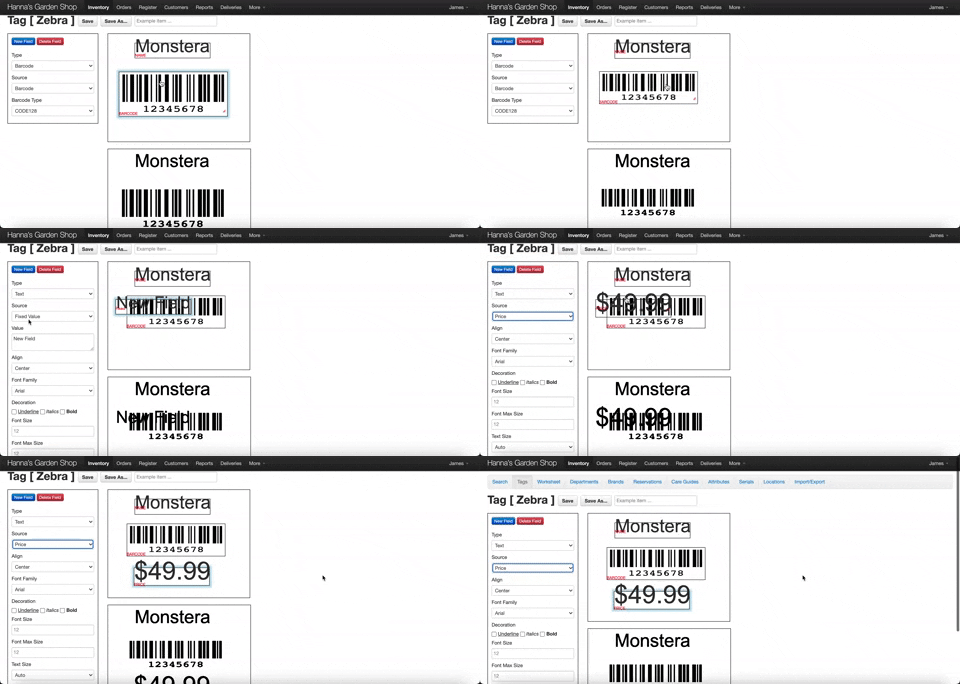
To edit a new or current template layout select the blue  button
This page gives you options to insert fields onto the previewed tag layout in real time.
Tip
You can even save template examples for future use!